


Link to customers and products
Every sales order belongs to a customer and lists products from your catalog. With both linked, you always know who ordered what, and each item points straight to the product it is for.
How to link an order to a customer
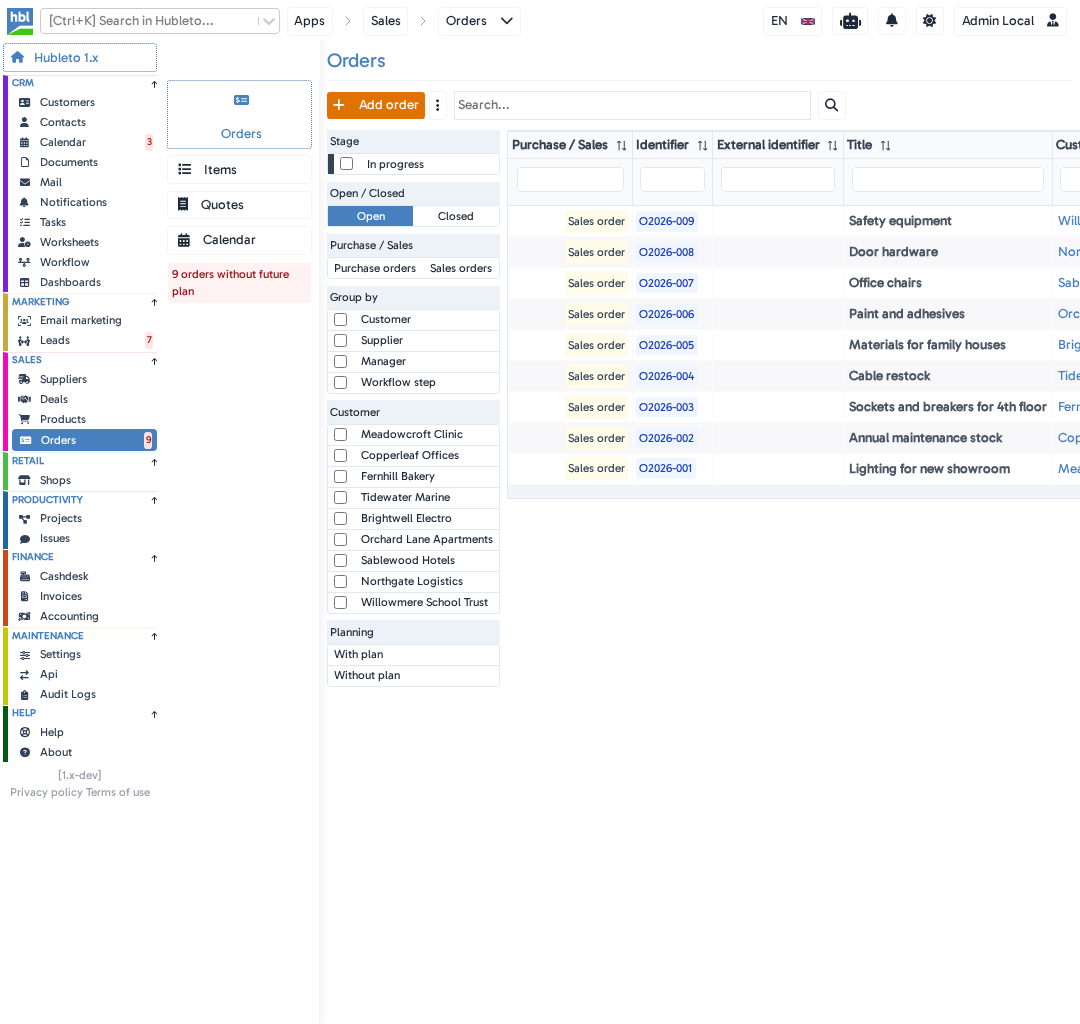
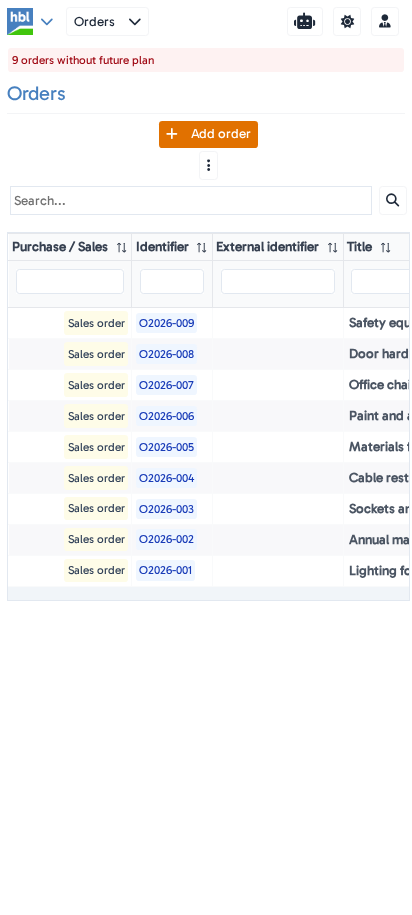
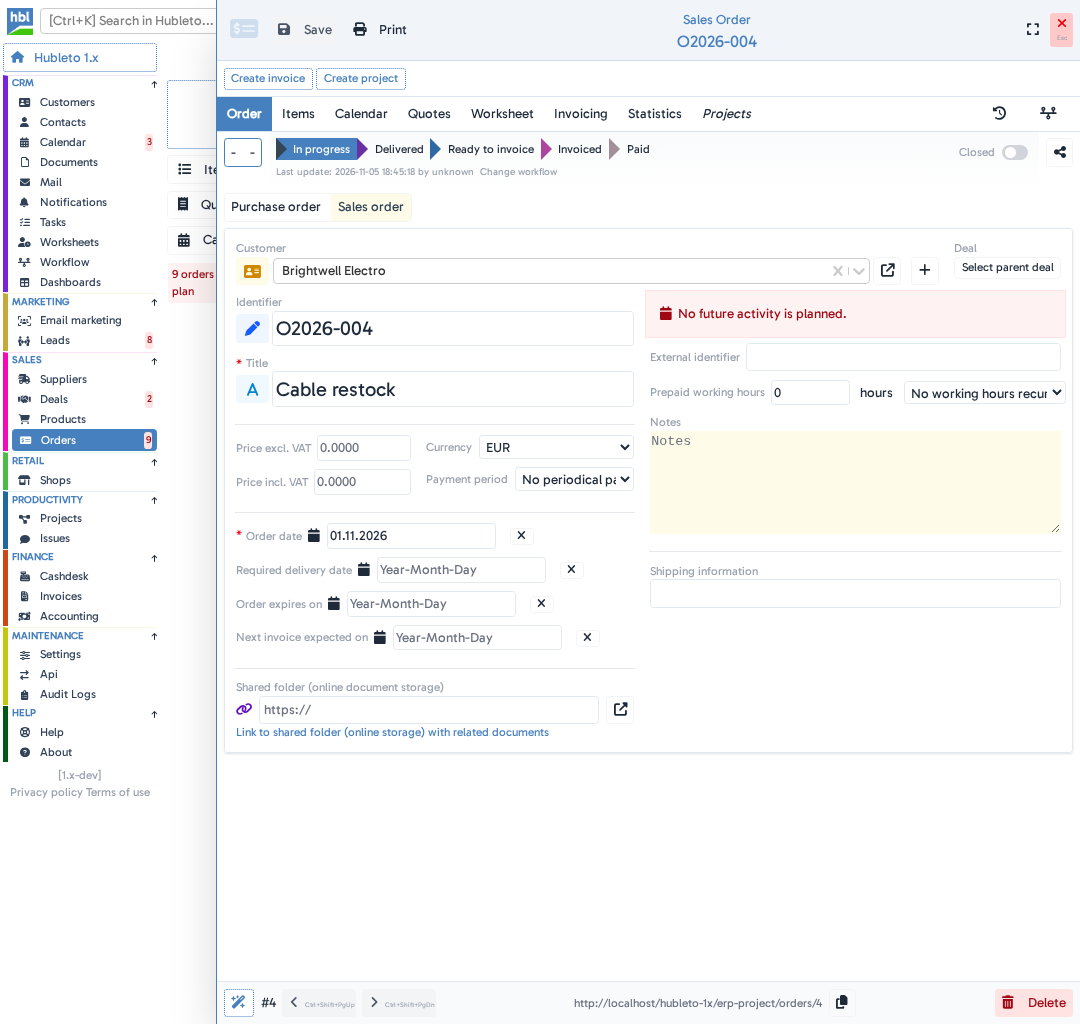
Click Sales order at the top of the order.
The Customer field appears.
Click the Customer field and choose the customer.
Type part of the customer name to find it quickly.
Click Save.
How to add products to an order
Go to Sales → Orders and click the order.
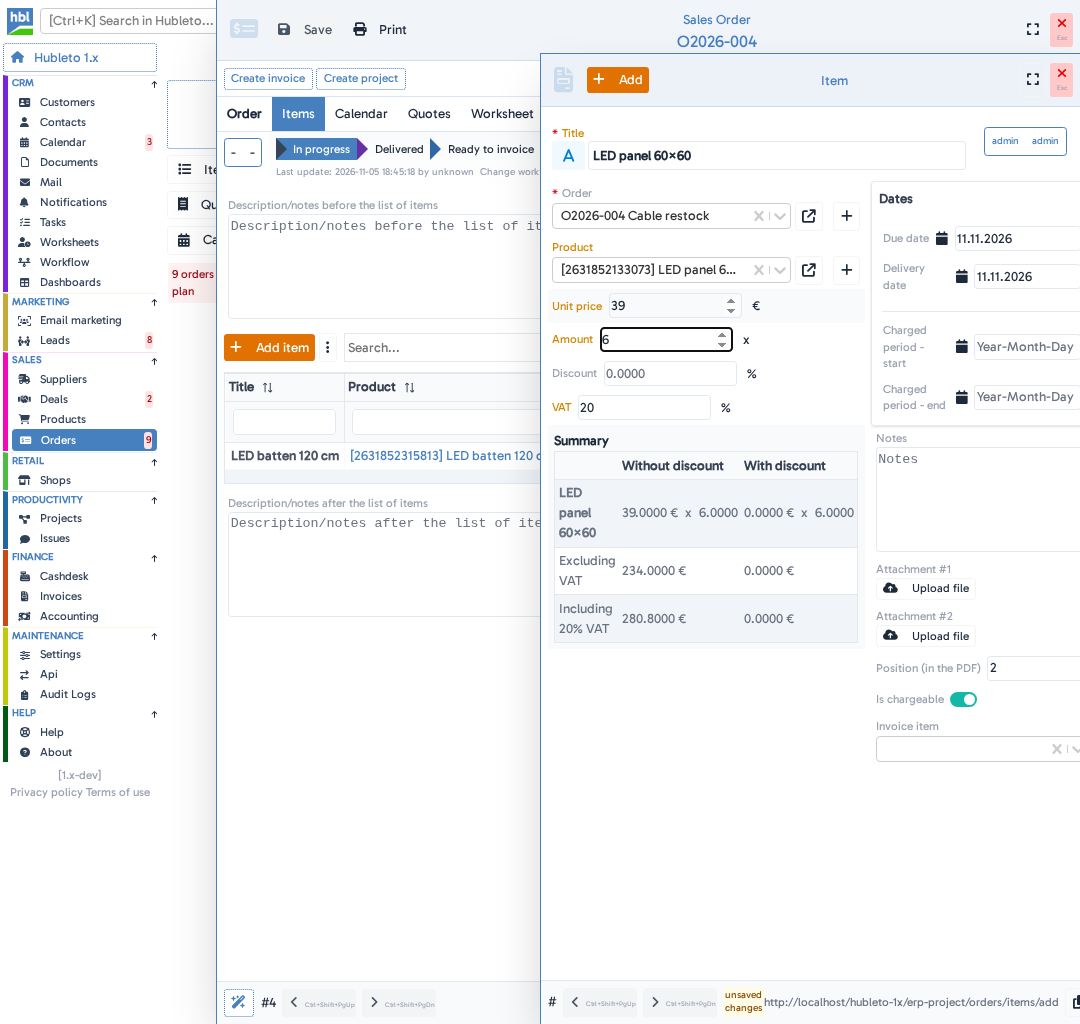
Open the Items tab and click Add item.
Click the Product field and choose the product.
Type part of the product name to find it.
Fill in the item.
Fill in:
- Title - the name of the item on the order (required).
- Unit price - the price of one unit.
- Amount - how many units the customer orders.
- VAT - the VAT rate in %.
Click Add.
The item appears in the Items tab of the order.
Tips
- Copy the title and price from the product, so the order matches your catalog. You find both in
Sales→Products. - Check the
Summaryin the item form before you clickAdd. It shows the price with and without VAT.
Common mistakes
Leaving the item Title empty → the item isn't saved.
Clicking Purchase order instead of Sales order → the order shows a Supplier field instead of Customer.
Summary
| Topic | Summary |
|---|---|
| Linking a customer | Open the order, click Sales order and choose the customer. |
| Adding products | Items tab → Add item → choose the product and fill in the item. |
| Required item field | Title |