

Link to customers and products
Every sales order belongs to a customer and lists products from your catalog. Pick a product, and Hubleto fills in its name, unit price and VAT for you, so the order is ready in a few clicks.
How to link an order to a customer
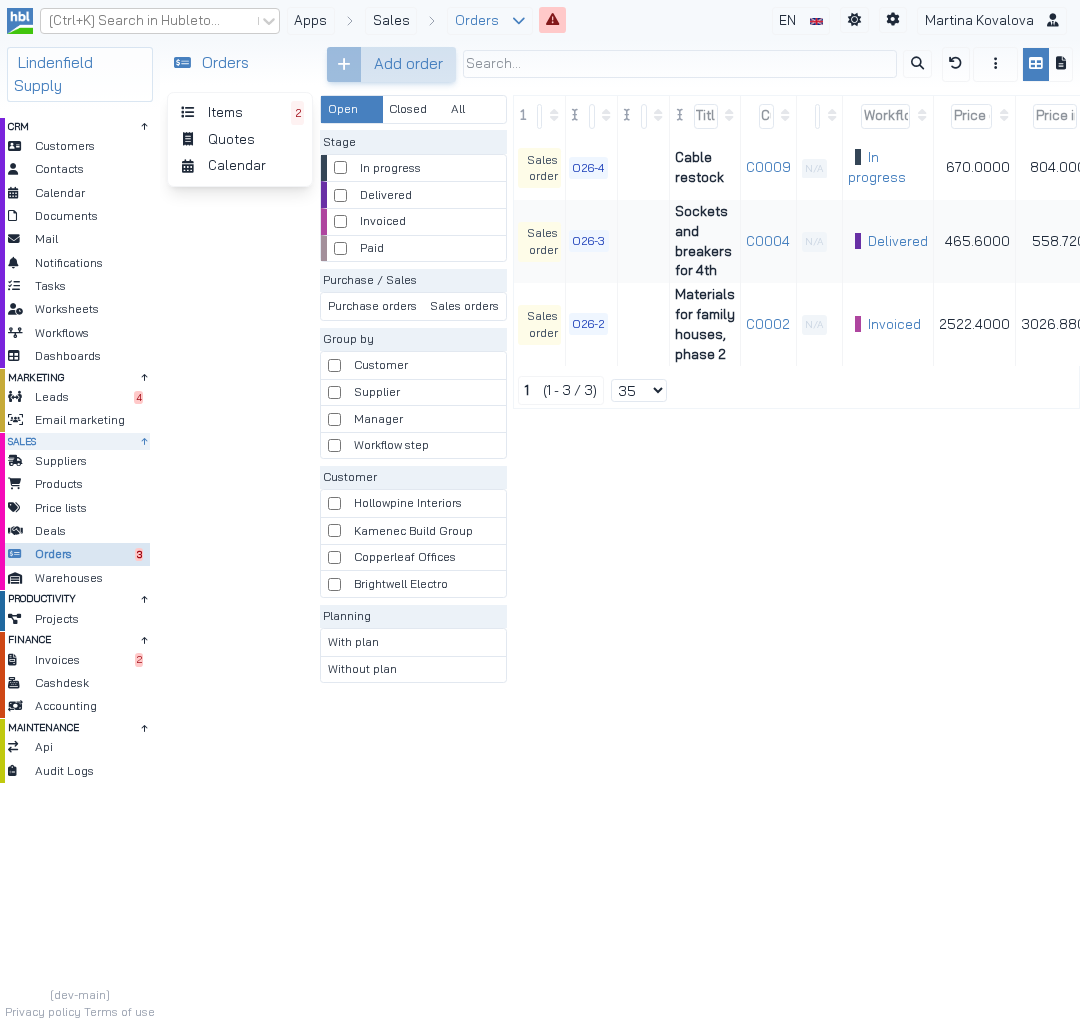
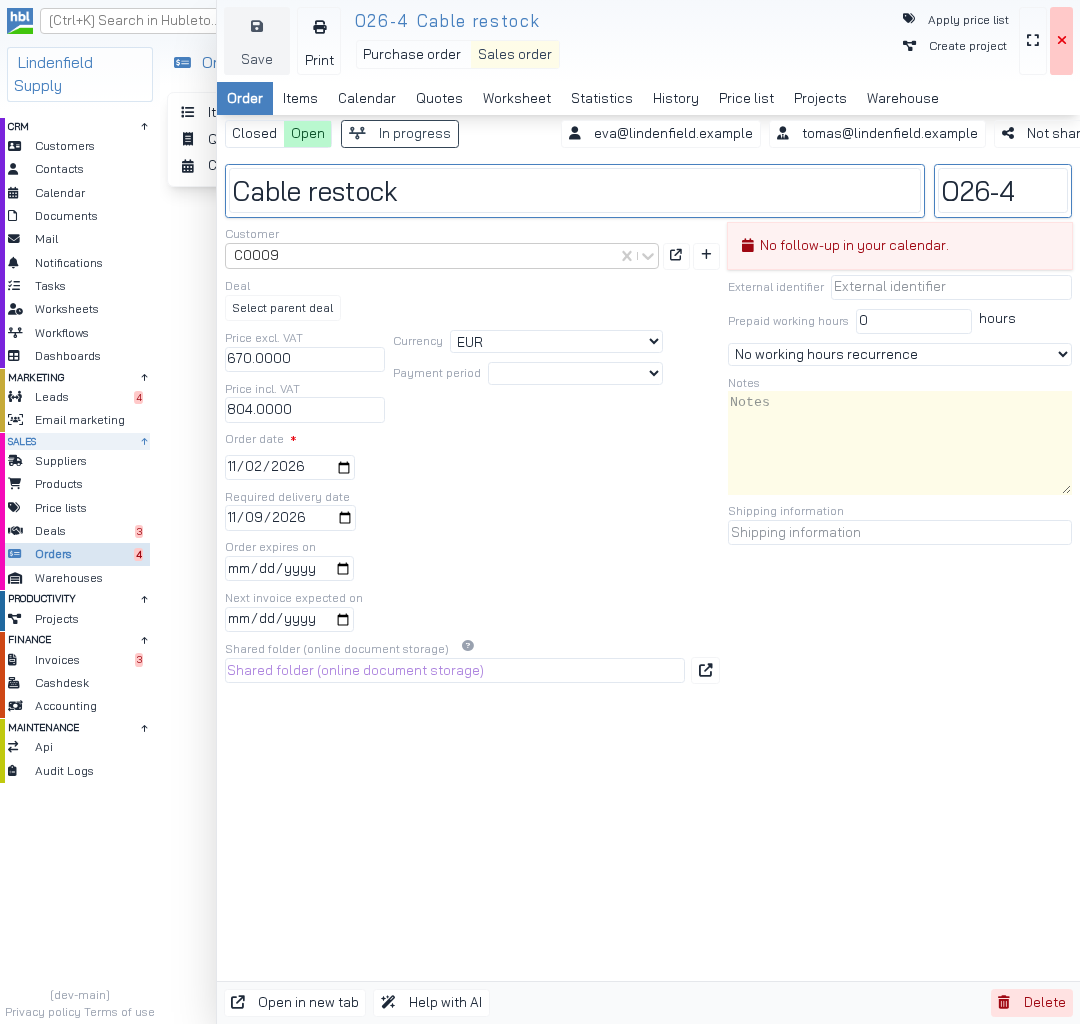
Click Sales order at the top of the order.
New orders start as sales orders, so this is usually already selected.
Click the Customer field and choose the customer.
Customers are listed by their identifier, for example C0009. Type the identifier to find the customer quickly. You see the identifier of each customer in CRM → Customers.
Click Save.
How to add products to an order
Go to Sales → Orders and click the order.
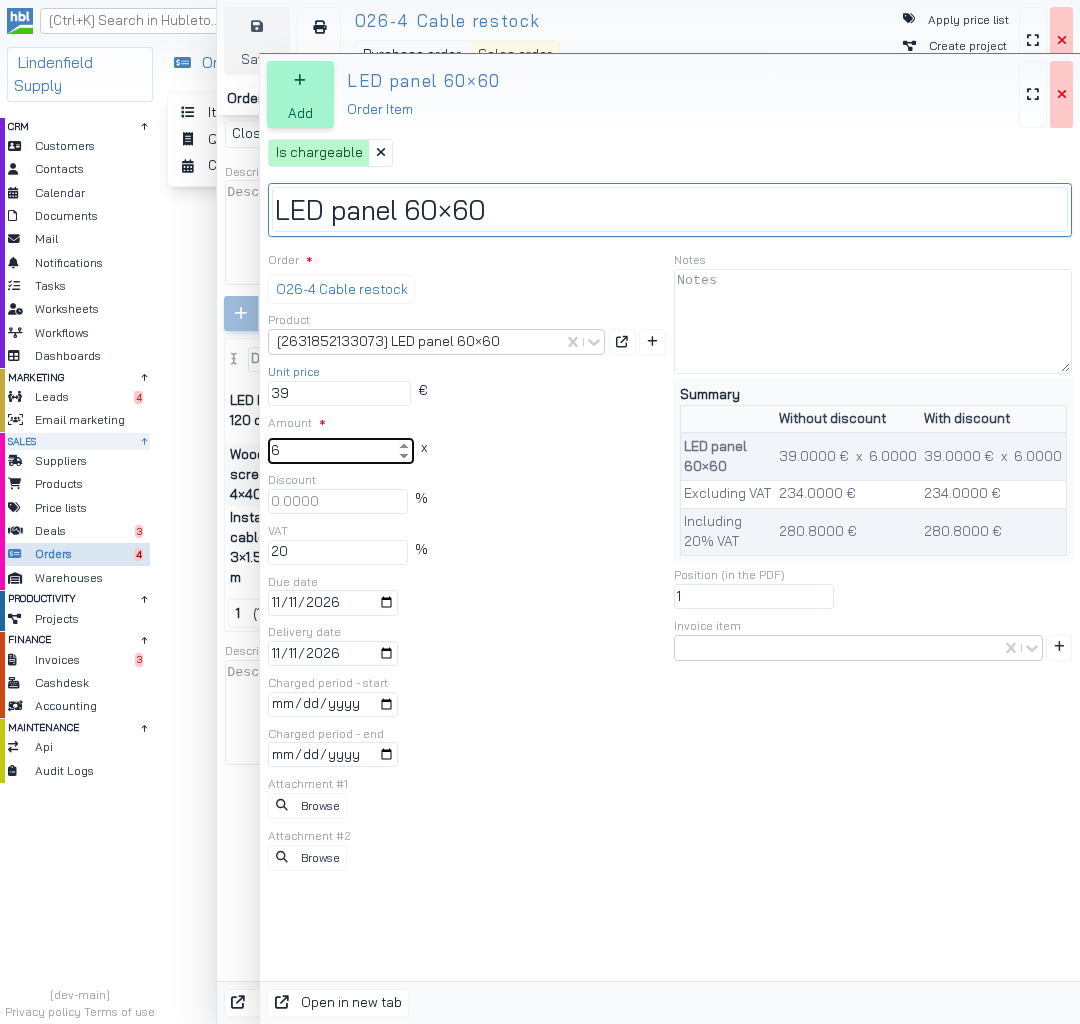
Open the Items tab and click Add item.
Click the Product field and choose the product.
Type part of the product name to find it. Hubleto fills in the title, unit price and VAT from the product.
Enter the Amount.
You can also change the unit price, discount or VAT for this order.
Click Add.
The item appears in the Items tab of the order.
How to see all orders of a customer
In Sales → Orders, tick the customer under Customer in the filter on the left. The list shows only the orders of that customer.
Tips
- Keep your products up to date in
Sales→Products. Every new order item takes its title, unit price and VAT from there. - Check the
Summaryin the item form before you clickAdd. It shows the price with and without VAT.
Common mistakes
Confirming a sales order without a customer → Hubleto doesn't save it and tells you the order needs a customer first.
Typing the customer name in the Customer field → no customer is found, because the list is searched by identifier.
Summary
| Topic | Summary |
|---|---|
| Linking a customer | Open the order, click Sales order and choose the customer. |
| Adding products | Items tab → Add item → choose the product and enter the amount. |
| Product details | The title, unit price and VAT come from the product. |
| Orders of one customer | Tick the customer under Customer in the order list filter. |