


Manage inventory
Keep the packaging, size and storage details of every product in one place. Your team always knows how a product is packed, how big and heavy a package is and how to store it.
How to fill in the packaging
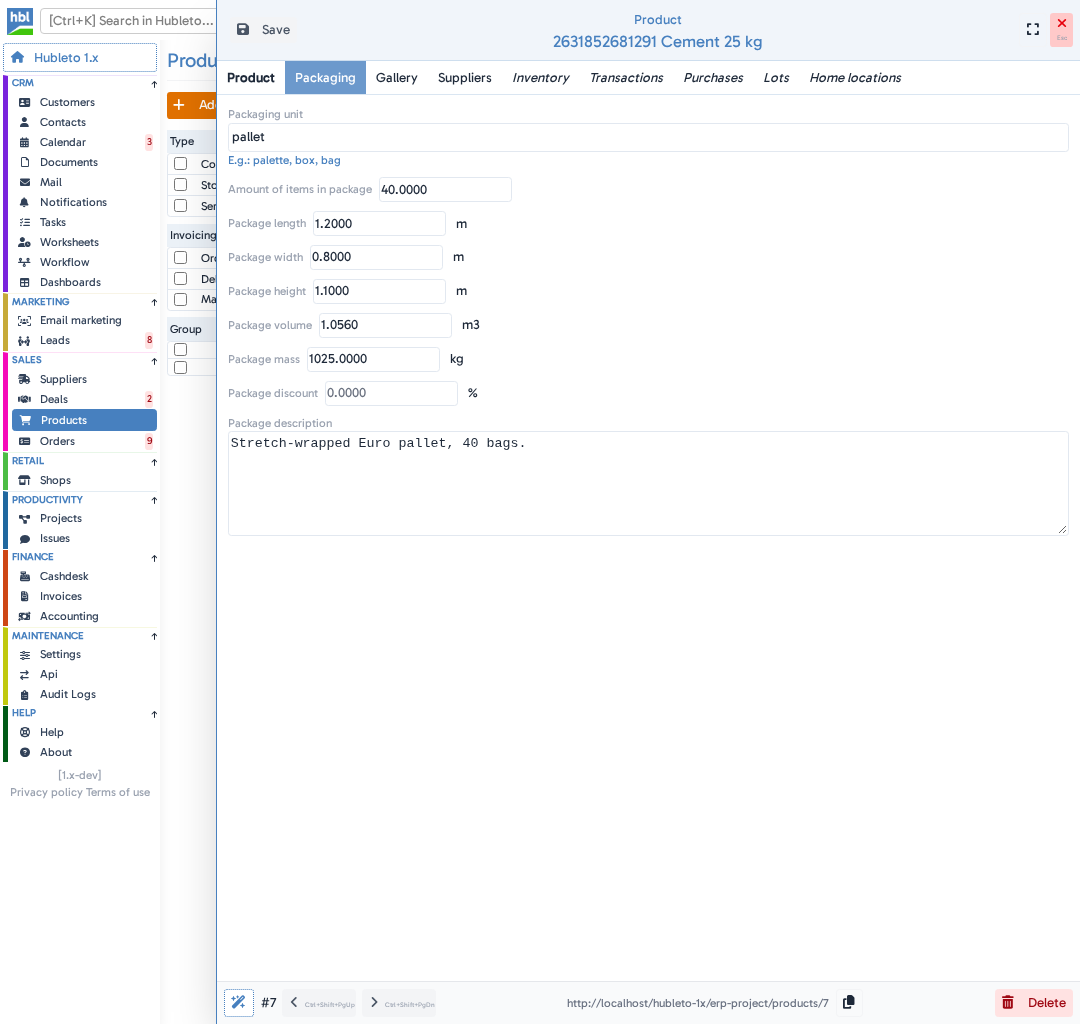

2
Fill in the package.
Fill in:
- Packaging unit - the package, for example pallet, box or bag.
- Amount of items in package - how many units of the product one package holds.
- Package length, Package width, Package height - the package size in metres.
- Package volume - the volume of one package in m3.
- Package mass - the weight of one full package in kg.
- Package discount - the discount for a whole package in %.
- Package description - anything your team should know about the package.
3
Click Save.
How to set the unit and storage details
1
Go to Sales → Products and click the product.
2
Fill in the details.
In the product, fill in:
- Unit - the unit you sell the product in, for example pcs, bag or roll.
- Storage rules - how to store and handle the product.
- Needs reordering? - switch it on to mark the product for your next purchase.
3
Click Save.
Tips
- Write handling instructions into
Storage rules, so your whole team sees them in the product. - Add a
Package descriptionfor packages that need special care, for example a stretch-wrapped pallet.
Common mistakes
Entering the package size in centimetres → Package length, Package width and Package height are in metres. A box 40 cm long has a length of 0.4.
Leaving Package volume empty → Hubleto doesn't calculate it from the size. Enter it yourself.
Summary
| Topic | Summary |
|---|---|
| Packaging | Packaging tab of the product |
| Package size | Length, width and height in m, volume in m3, mass in kg |
| Unit | Unit in the product, for example pcs or bag |
| Storage | Storage rules and Needs reordering? in the product |