


Manage inventory
Every product knows how it is packed, which lots you have in stock and where it belongs in your warehouse. Set it up once in the product detail, and Hubleto works out package contents and weights for you, while your stock, movements and purchase prices stay one click away.
How to describe the base unit
The base unit is the single piece you sell, for example one screw or one can of paint.
Go to Sales → Products and click the product.
Choose the Base unit.
Choose what the product is measured by:
- Count (pieces) - you sell it by the piece.
- Mass (weight) - you sell it by the kg.
- Volume (capacity) - you sell it by the litre.
- Length (distance) - you sell it by the metre.
Open the Packaging tab and fill in the size of one base unit.
For a product counted in pieces, enter the Length, Width and Height in metres and the Gross weight and Net weight in kg. Hubleto shows the volume and the weight of the sales packaging (gross − net). For other base units, the tab tells you what to fill in.
Click Save.
How to add packaging levels
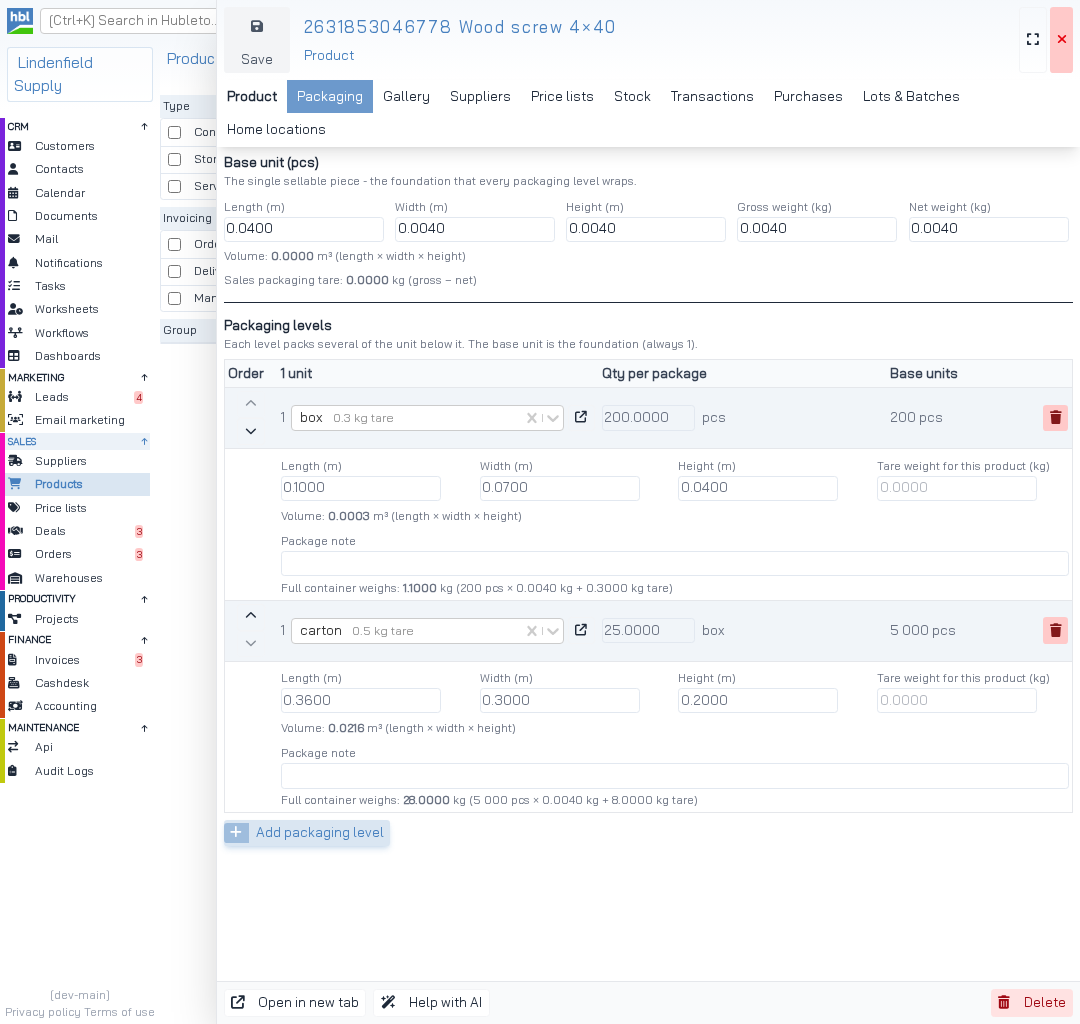
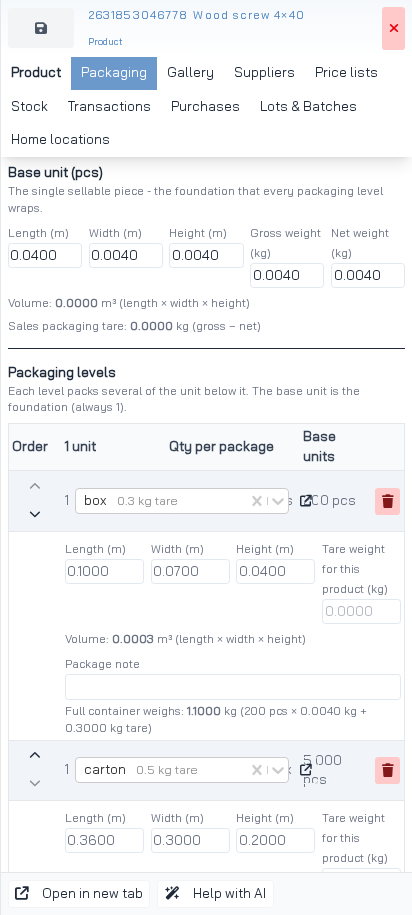
Packaging levels describe how the product is packed, for example 200 screws in a box and 25 boxes in a carton.
Click
Choose the unit and enter the Qty per package.
Fill in:
- 1 unit - the package, for example box, carton or pallet.
- Qty per package - how many units of the level below fit into one package. The first level counts base units.
- Length, Width, Height - the package size in metres.
- Tare weight for this product - the weight of the empty package, if it differs from the standard one.
- Package note - anything your team should know about the package.
Click Save.
The Base units column shows how many base units are in each package. Once the base unit has a gross weight, Hubleto also shows what a full package weighs.
Use the arrows on the left to change the order of the levels. To remove a level, click the red bin next to it and click Save.
How to set up packaging units
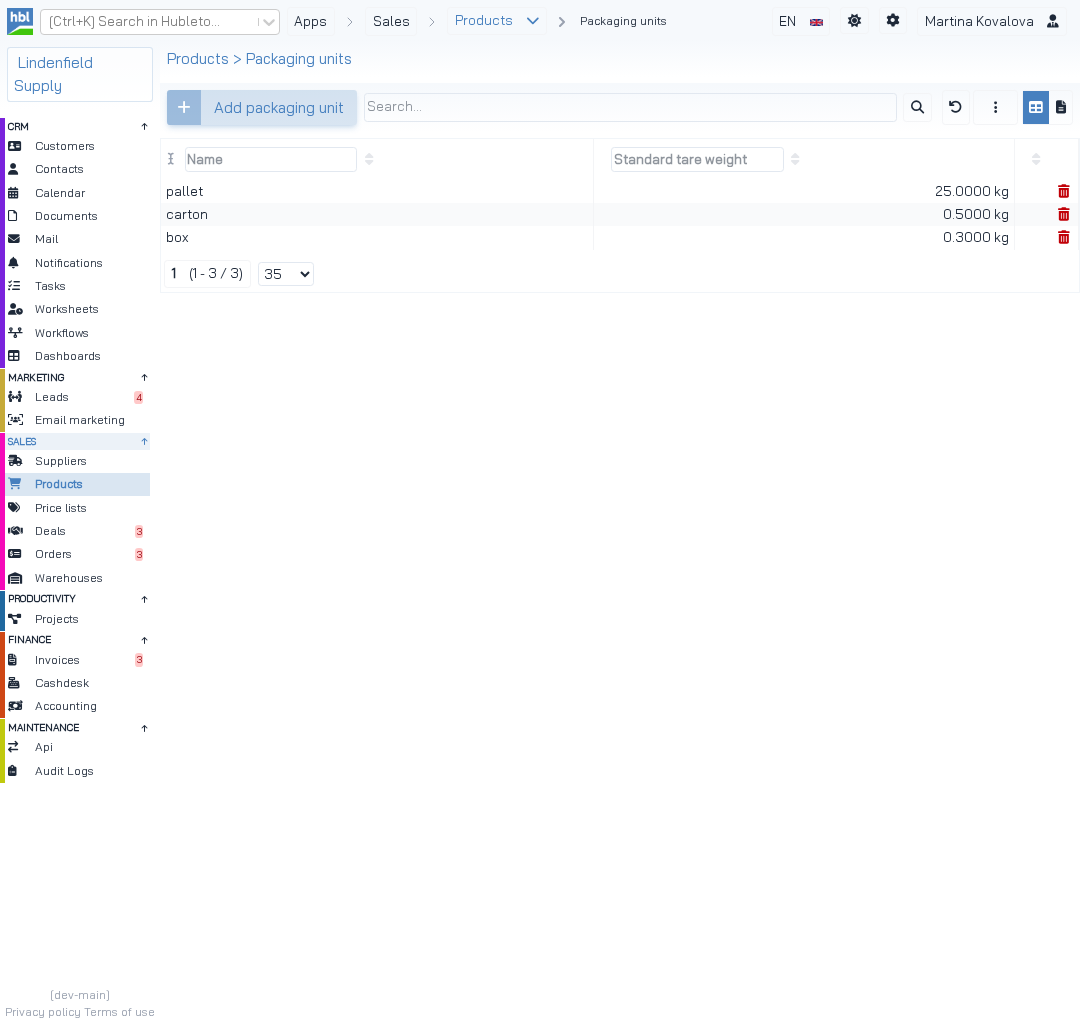
The units you choose in packaging levels come from one shared list. Go to Sales → Products, click Products at the top of the page and choose Packaging units. Click , enter the Name and the Standard tare weight, and click .
How to track lots and batches
Go to Sales → Products and click the product.
Switch on Track lots/batches and click Save.
Open the Lots & Batches tab and click
Fill in the lot.
Fill in:
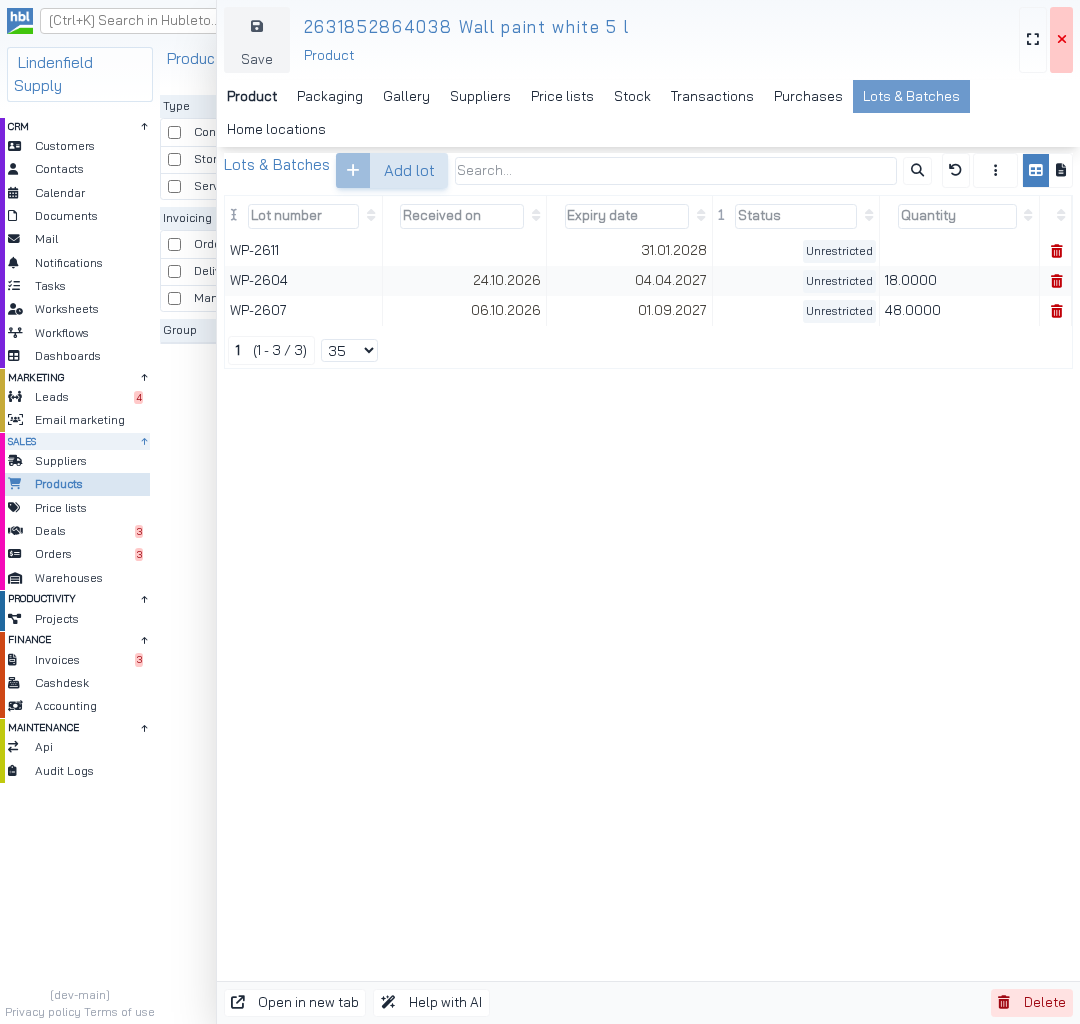
- Lot number - the supplier's batch number (required). It must be unique for the product.
- Received on - when the lot first arrived.
- Expiry date - leave it empty if the lot does not expire.
- Status -
Unrestrictedfor normal stock.On holdstock can't be shipped, but can still be moved or adjusted.Blockedstock can't be shipped, moved or adjusted until you clear it. - Note - anything else about the lot.
Click
The lot appears in the Lots & Batches tab. For each lot, you see how much of it you have in stock.
How to set a home location
A home location is the place in your warehouse where the product belongs.
Go to Sales → Products, click the product and open the Home locations tab.
Click and choose the location.
Each location is listed with its warehouse, for example A-01 @Central warehouse Senec.
Click Save.
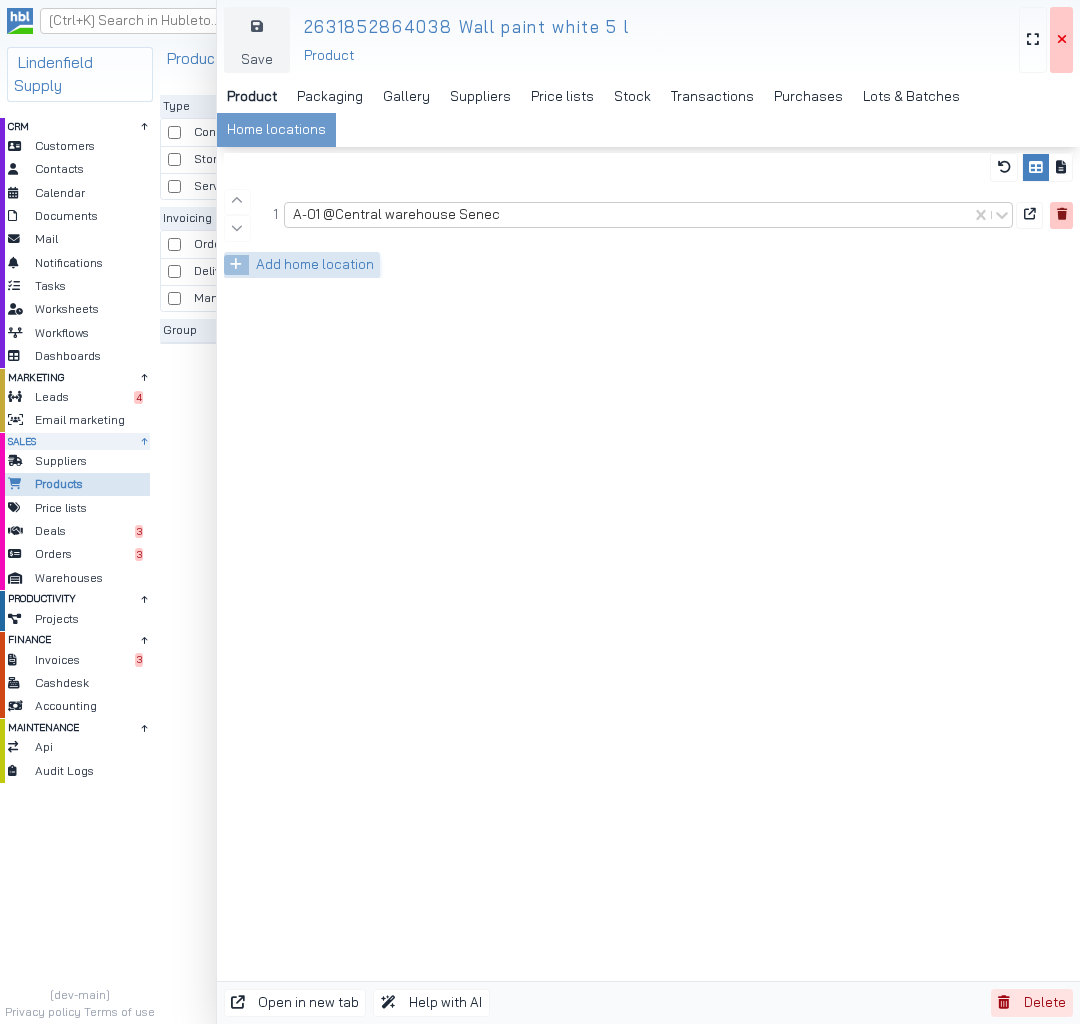
When you receive the product into the warehouse, Suggest location in the transaction picks a place inside its home location. If you add more home locations, use the arrows to put the preferred one first.
How to check stock
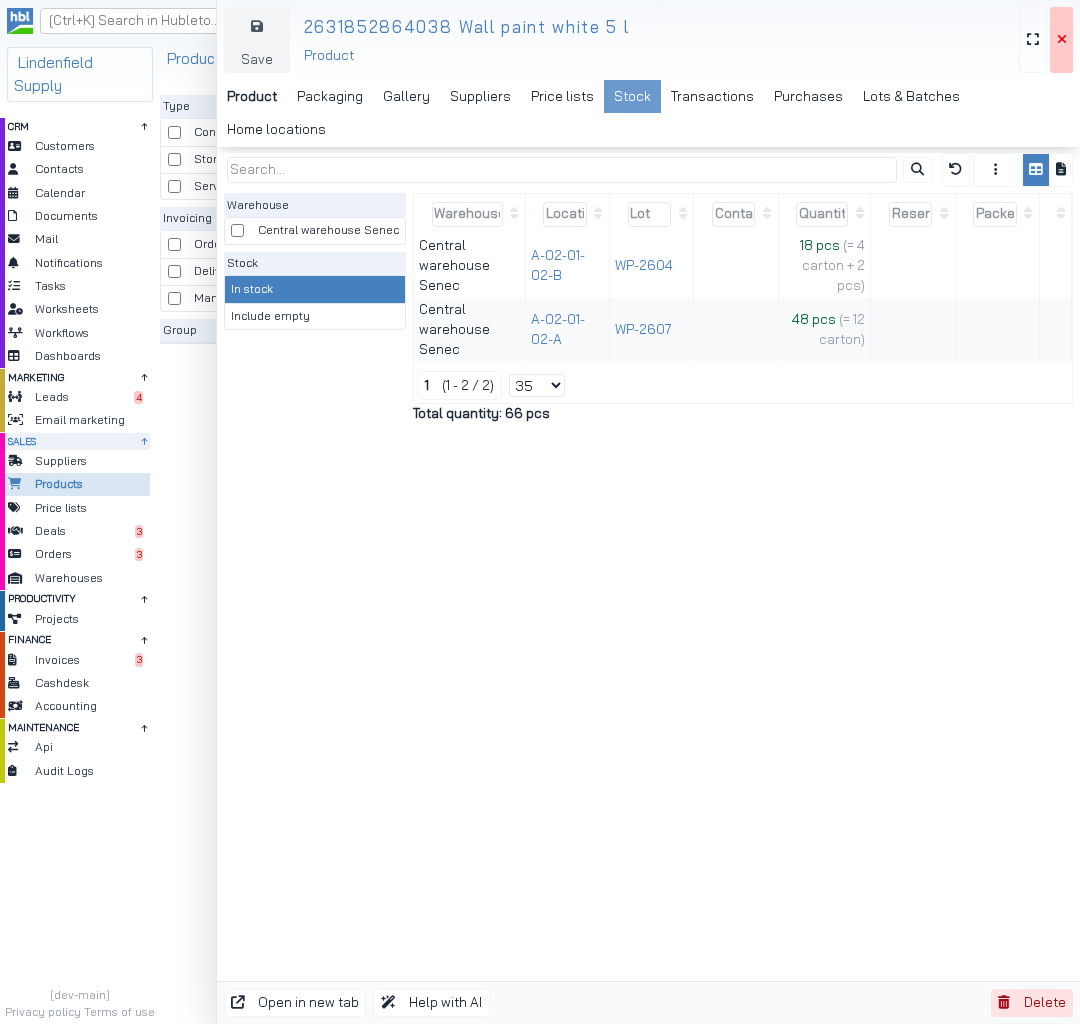
Open the product in Sales → Products and switch between these tabs:
- Stock - where the product is stored, with the location, lot and quantity. The total quantity is shown below the list.
- Transactions - every movement of the product in and out of your warehouses.
- Purchases - the
Last purchase price, theAverage stock priceand the purchase history.
Tips
- Enter the gross weight of the base unit. Hubleto then calculates what each full package weighs, all the way up to the pallet.
- Set the
Standard tare weightof each packaging unit once. Every product packed in that unit uses it, unless you enter its own tare weight. - Write handling instructions into
Storage rulesin the product, so your whole team sees them. - Switch on
Needs reorderingin the product to mark it for your next purchase.
Common mistakes
Entering base units in Qty per package for a higher level → each level counts units of the level below it. A carton of 25 boxes has 25, not 5000.
Net weight higher than gross weight → Hubleto shows a warning in the Packaging tab. Check both numbers.
Changing the Base unit of a product with packaging levels → the quantity of the first level is emptied. Enter it again in the Packaging tab.
Summary
| Topic | Summary |
|---|---|
| Base unit | Base unit in the product, its size in the Packaging tab. |
| Packaging | Packaging tab → Add packaging level |
| Packaging units | Products at the top of the products page → Packaging units |
| Lots | Switch on Track lots/batches, then Lots & Batches tab → Add lot |
| Home location | Home locations tab → Add home location |
| Stock | Stock, Transactions and Purchases tabs of the product |