


Export invoices
Hubleto turns your orders into invoices without any retyping. The customer, items, prices and VAT come straight from the order. You can then export an invoice as a PDF for your customer, or export a list of invoices to CSV.
Before you start
Your invoices get their look from a document template. You can create and edit templates in CRM → Documents → Templates.
How to prepare order items for invoicing
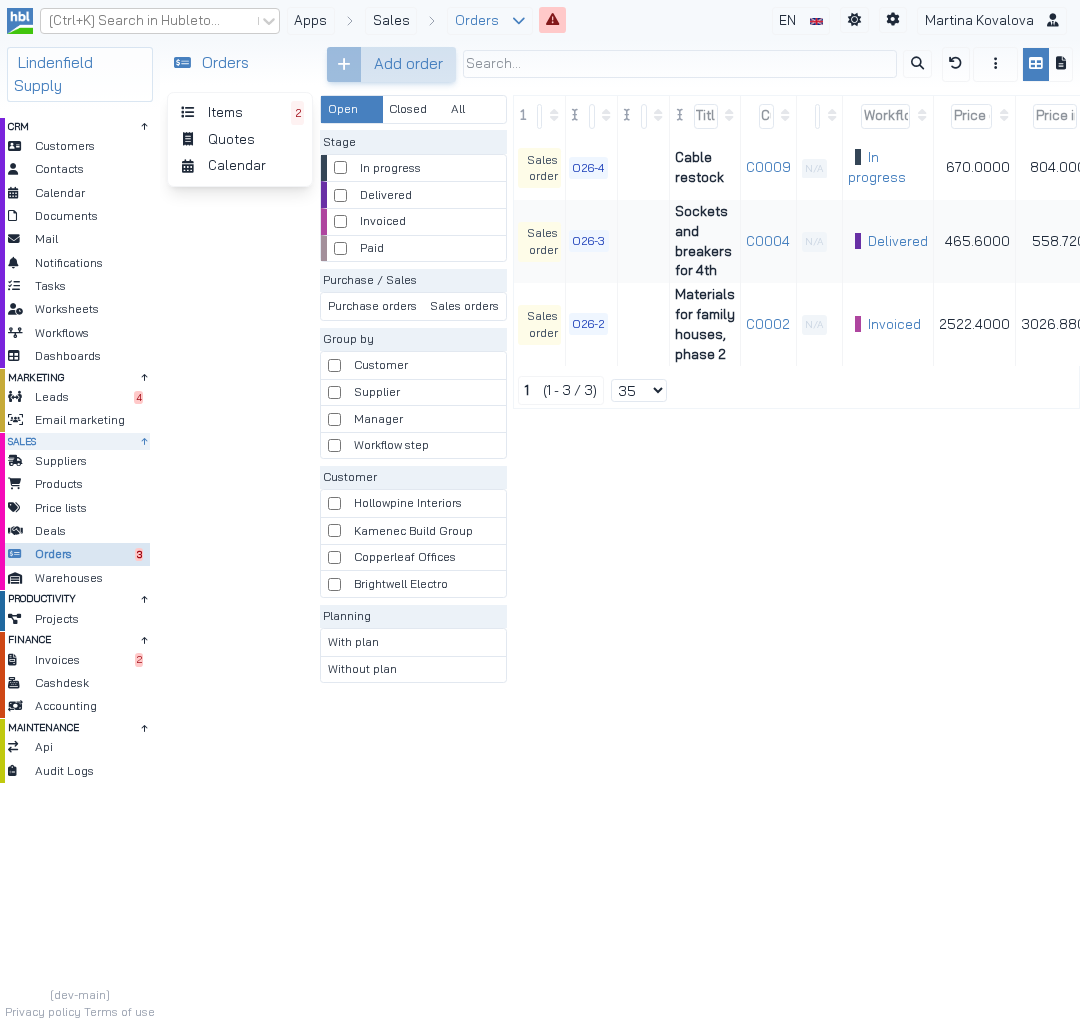
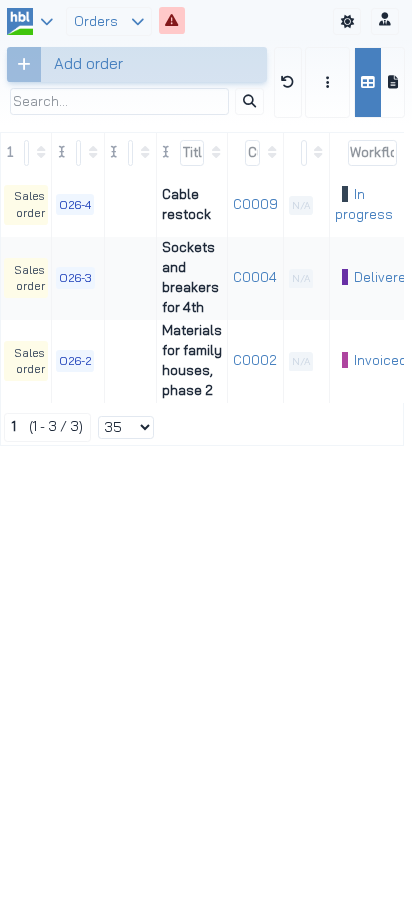
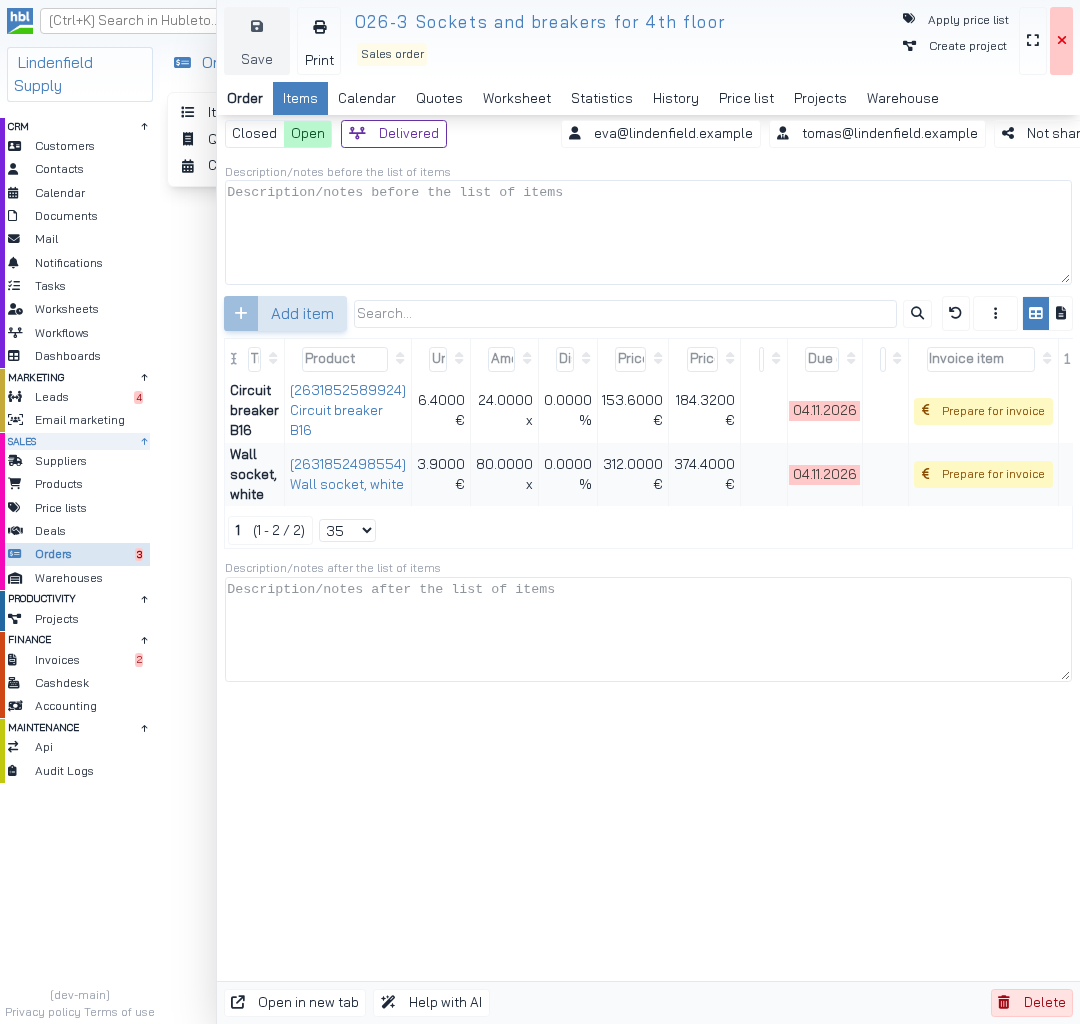
Open the Items tab.
Click Prepare for invoice next to the item.
Click Yes, prepare for invoice to confirm.
The item is now waiting in the list of prepared items.
How to create the invoice
Go to Finance → Invoices and click Items in the panel next to the menu.
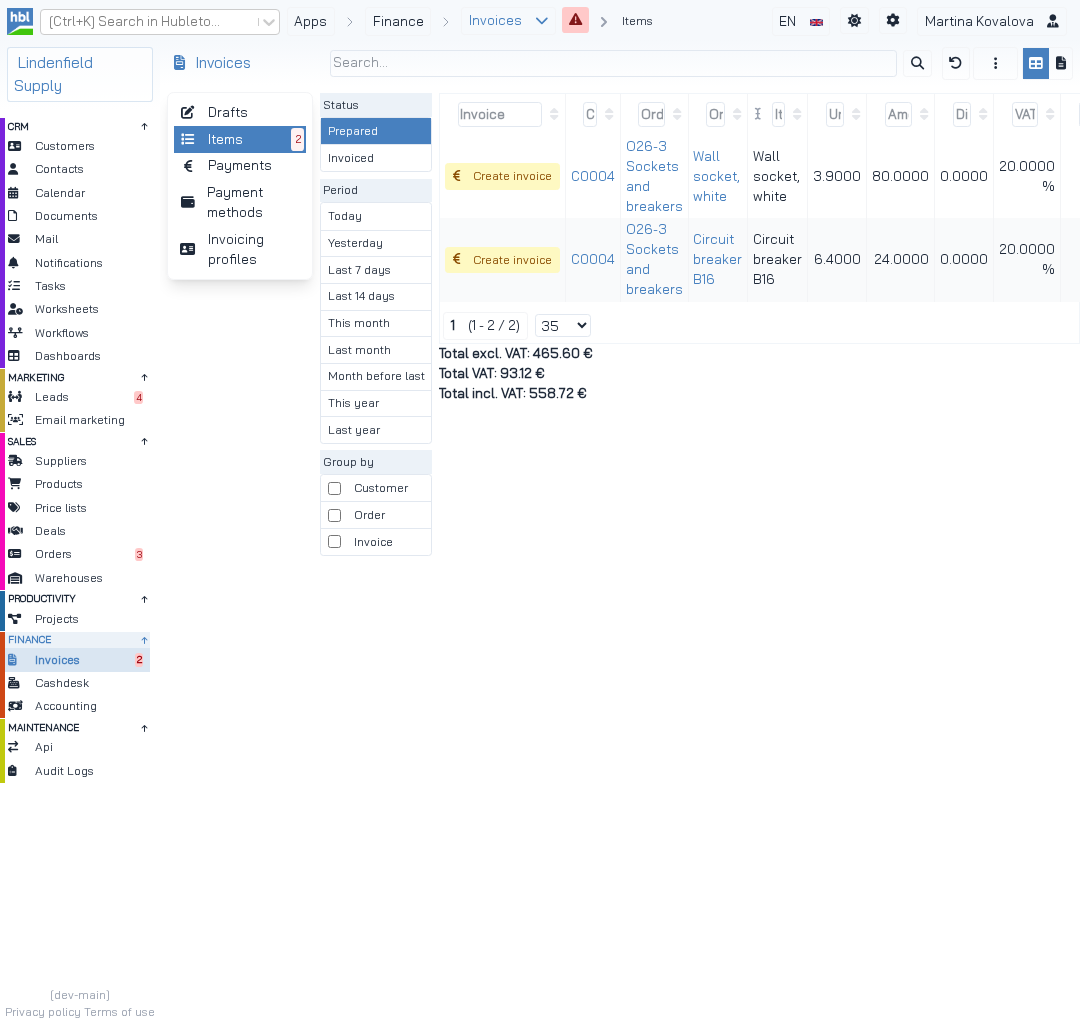
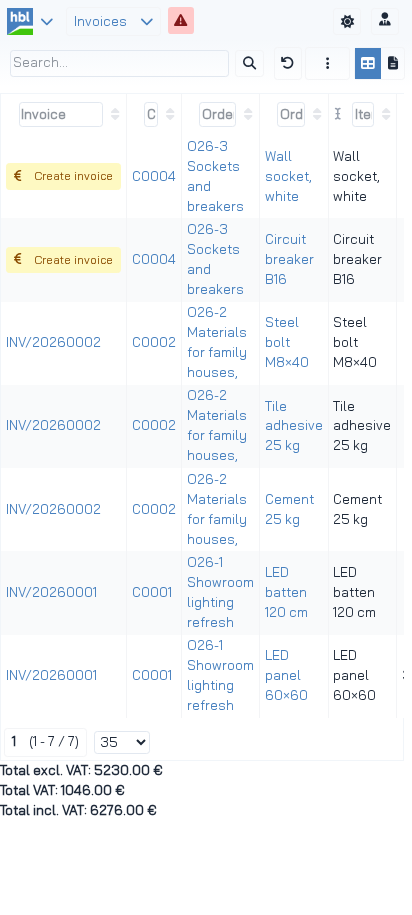
Click Create invoice next to the item.
Click Yes, create invoice to confirm.
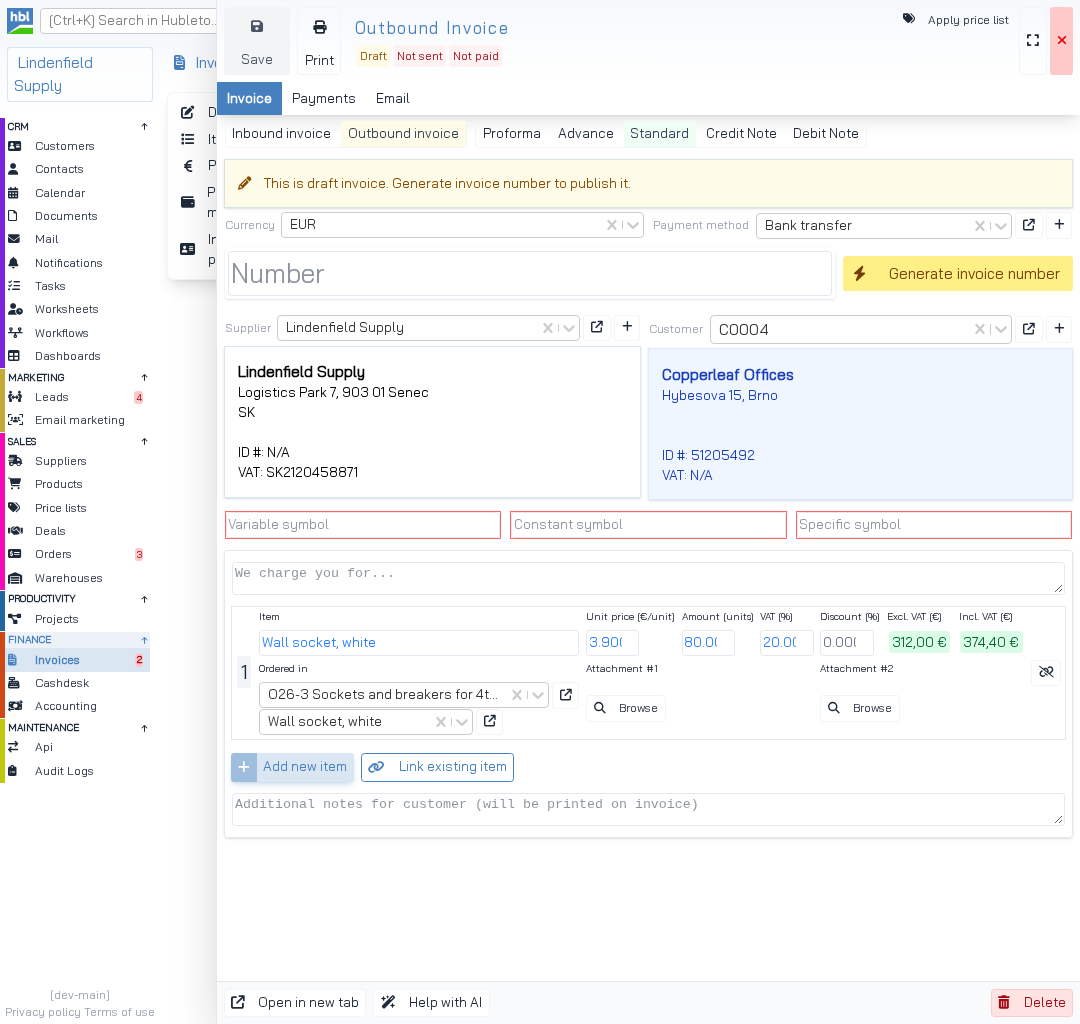
A draft invoice opens with the customer, item, price and VAT already filled in.
Check the invoice and click Generate invoice number.
The invoice is now published.
How to export an invoice as a PDF
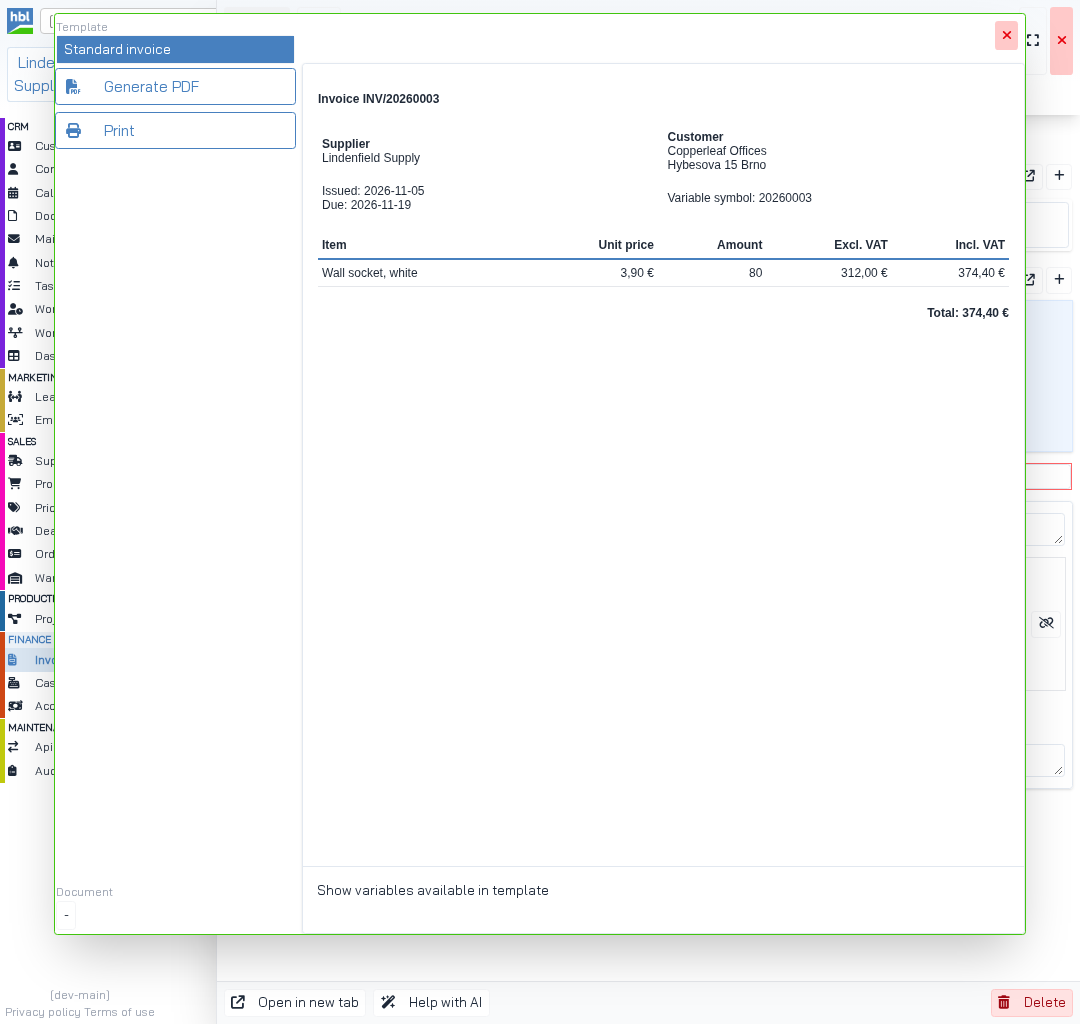
Go to Finance → Invoices, open the invoice and click Print.
Click your template.
Hubleto shows a preview of the invoice.
Click the Print button below the list of templates.
Your browser opens its print window.
Choose Save as PDF as the printer and save the file.
Your PDF is ready to send to the customer.
How to export invoices to CSV
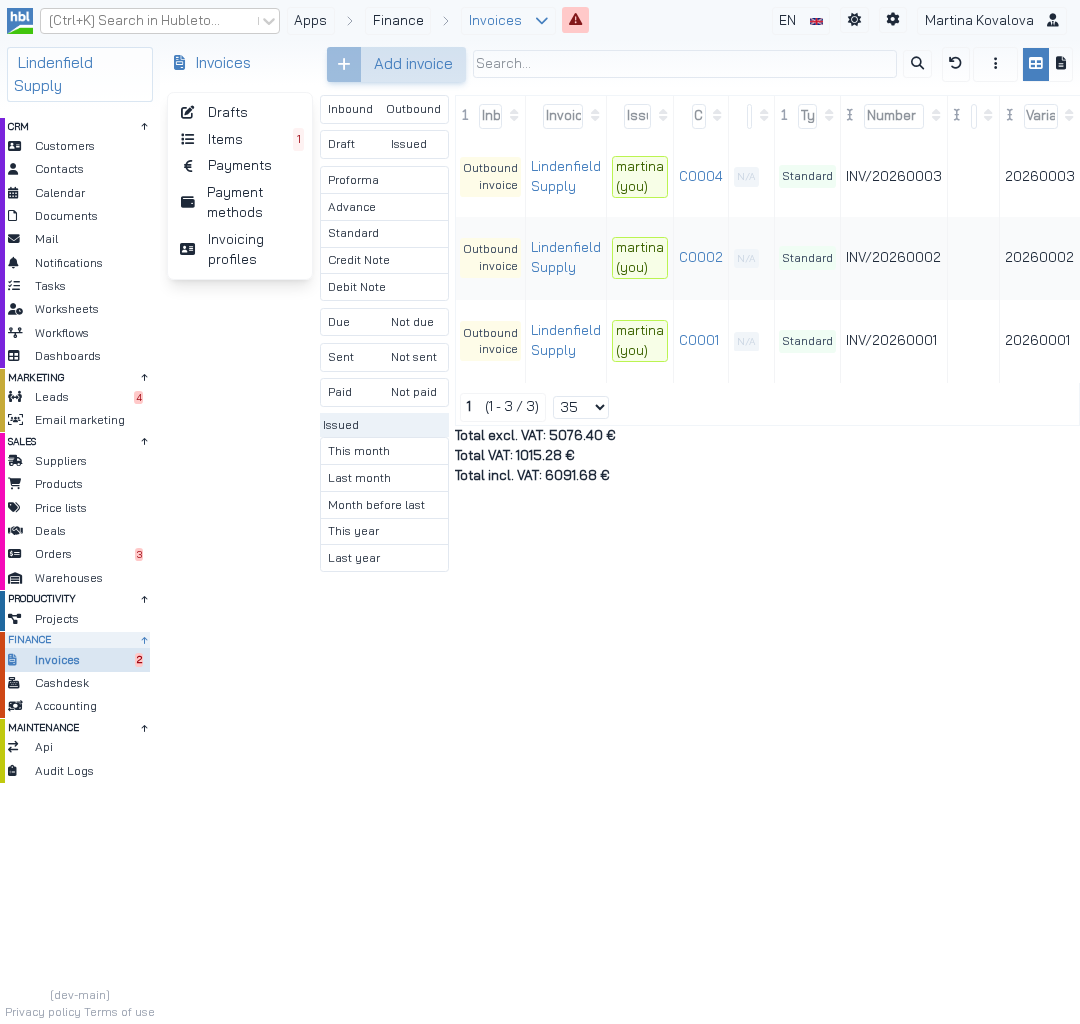
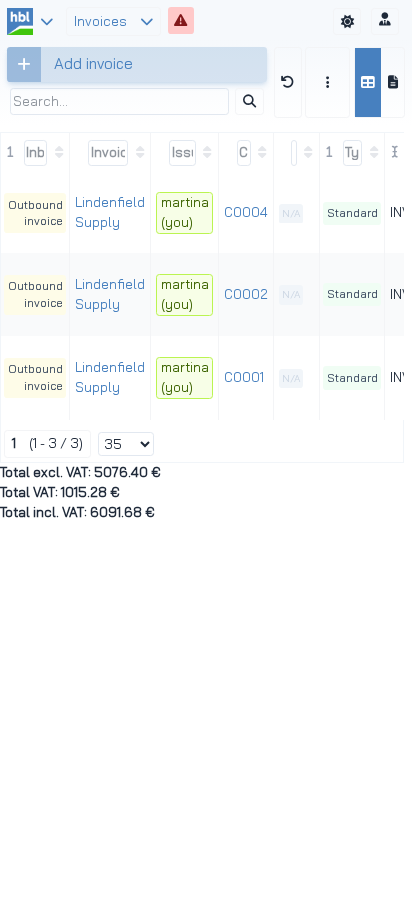
Use the filters on the left to select the invoices you need.
For example, click Last month under Issued. The export contains only the invoices that match your filters.
Click the three dots next to the search box and choose Export to CSV.
Check the separator and click Export to CSV.
Your browser downloads the file with numbers, customers, dates and totals.
Tips
- Use the
Last monthfilter underIssuedto export the invoices of the previous month. - Check the draft before you generate the invoice number.
Common mistakes
No document template → the list in the Print window is empty, so create a template first.
Printing before the invoice has its number → the customer gets a document without a number.
Exporting with an old filter → the CSV leaves out some invoices, so always check the filters first.
Summary
| Topic | Summary |
|---|---|
| Preparing | Open the order, go to Items and click Prepare for invoice. |
| Creating | In Finance → Invoices → Items, filter Prepared and click Create invoice. |
| PDF export | Click Print, choose your template and save as a PDF in the print window. |
| CSV export | Filter the invoices, then use Export to CSV. |