Menu navigation
Hubleto uses a consistent layout to help you move between apps, find records, and manage your daily work. Once you understand the main navigation areas, you can use the same patterns across most of the platform.
The options you see depend on your screen size, installed apps, workspace configuration, and user permissions. This means your Hubleto may look slightly different from the example below.
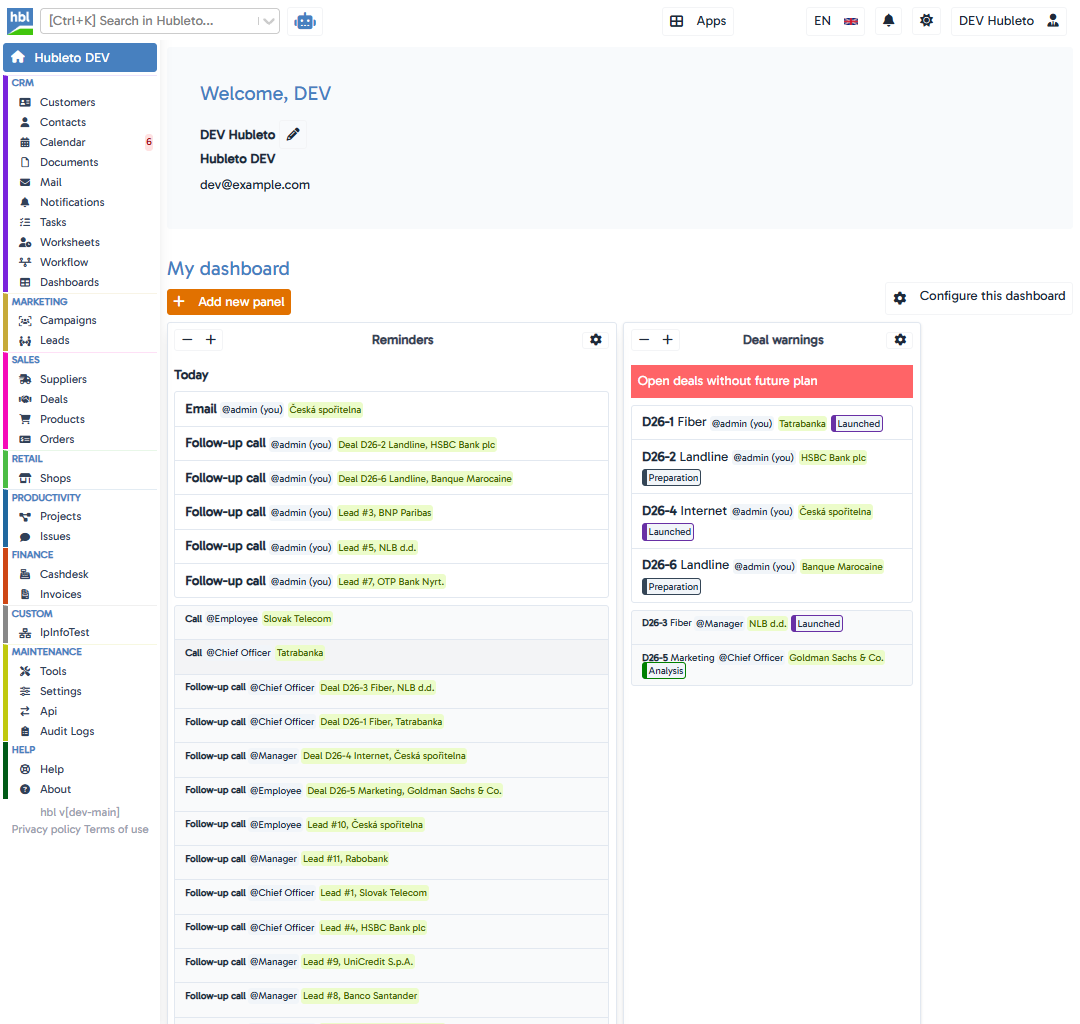
The desktop layout is organized around the top bar, left sidebar, and central workspace.
Main navigation areas
| Area | Purpose |
|---|---|
| Top bar | Provides search, app shortcuts, contextual controls, and user settings. |
| Left sidebar | Lists the apps available to your account, usually grouped by business area. |
| Central workspace | Displays the currently selected dashboard, table, record, form, or app page. |
Top bar
The top bar remains available while you move between Hubleto apps. It contains the tools that help you search, switch context, and access account-related controls.
Logo and homepage
Select the Hubleto or company logo at the left side of the top bar to return to the main homepage.
Global Search
The Global Search field is located near the logo. Use it to search data made available by your enabled apps, such as customers, contacts, deals, documents, or tasks.
To use Global Search:
- Select the search field or press
Ctrl + K. - Enter a name, identifier, title, or another relevant term.
- Select a result to open the corresponding record or page.
The available result types depend on the apps installed in your workspace and the information accessible to your account.
AI Assistant
On the desktop layout, the robot icon beside Global Search opens the AI Assistant. Use it when you want to work with the assistance features configured for your Hubleto instance.
The AI Assistant is a top-bar shortcut, not a button inside every form. Its availability and capabilities depend on your Hubleto configuration.
Breadcrumbs
When you open an app or a record, the top bar can display breadcrumbs showing your current location. Use these links to move back to a parent section without returning all the way to the homepage.
Apps launcher
Select Apps to open the app launcher. This gives you another way to find and open an enabled app, especially when you already know its name.
Quick controls and user menu
The right side of the top bar can contain:
- Language - changes the interface language.
- Help - opens documentation related to the page you are viewing when contextual help is available.
- Notifications - opens your notifications and may display the number of unread items.
- Cloud or subscription information - appears when the relevant app is installed.
- Appearance - switches between the light and dark interface modes.
- User menu - opens account management and sign-out options.
Some controls are hidden on smaller screens or appear only when the corresponding feature is installed.
Left sidebar
The left sidebar is the main menu for your enabled Hubleto apps.
Apps are usually grouped by business area, such as CRM, Marketing, Sales, Productivity, Warehouses, Finance, Communication, Maintenance, or Help. Select a group or app name to open it in the central workspace. The active group and app are visually highlighted so you can see where you are.
The sidebar contains only apps enabled for your workspace and available to your user account. If an expected app is missing, check your user profile and permissions or contact your administrator.
On a smaller screen, use the menu button in the top bar to show or hide the sidebar.
Working inside an app
Selecting an app opens its content in the central workspace. The exact layout depends on the purpose of the app, but most Hubleto apps use familiar patterns.
Tables and lists
Tables display collections of records, such as customers, tasks, documents, or orders. Depending on the app and your permissions, you may be able to:
- search or filter records;
- sort data by a column;
- open a record by selecting its row;
- create a new record;
- customize visible columns or table settings;
- use app-specific actions.
Forms and records
Opening or creating a record displays a form. Forms can appear directly in the central workspace or in a dialog over the current page.
Fields, tabs, related records, and available actions vary by app. Required fields are normally marked, and actions that your role is not permitted to perform are hidden or unavailable.
Common form controls
The following controls are used by many Hubleto forms:
| Control | Usual location | What it does |
|---|---|---|
| Add or Save | Upper-left area of the form | Creates a new record or saves changes to an existing record. |
| Close | Upper-right area of a dialog | Closes the form and returns to the underlying page. |
| Fullscreen | Upper-right area of a dialog | Expands or restores the dialog when this control is available. |
| Delete | Lower area of an existing record | Starts the deletion process when your role has permission to delete the record. |
| Previous and next record | Lower area of supported forms | Moves between neighboring records without returning to the table. |
Saving changes
When you modify an existing record, select Save in the upper-left part of the form. The button becomes active when there are changes to save and briefly indicates when the save succeeds.
When creating a record, the same position normally contains an Add button. You can also use Ctrl + S in supported forms.
Closing a form
Select the X button in the upper-right corner of a dialog or press Esc to close it. If the record contains unsaved changes, Hubleto asks you to confirm before closing so that changes are not discarded accidentally.
Deleting a record
The Delete button is displayed only for an existing record when deletion is enabled and your role has the required permission.
Deletion uses a two-step confirmation:
- Select Delete.
- Wait for the button to change to Confirm delete, then select it again.
This confirmation step helps prevent accidental deletion. A record linked to other records may also be protected from deletion until those relationships are resolved.
Useful navigation habits
Use Global Search when you know the name or identifier of the record you need.
Use the left sidebar when you want to browse an app or begin a workflow.
Use breadcrumbs to move up within the current app while keeping your context.
Save changes before moving to another page, and pay attention to the unsaved-changes warning when closing a form.
Remember that available controls are permission-based. If you can view a record but cannot edit or delete it, your role may have read-only access.
Summary
| Task | Where to start |
|---|---|
| Return to the homepage | Select the logo in the top bar. |
| Find a specific record | Use Global Search or press Ctrl + K. |
| Open an app | Use the left sidebar or the Apps launcher. |
| Get contextual documentation | Select Help in the top bar when it is available. |
| Manage your account | Open the user menu in the top-right corner. |
| Save a record | Select Add or Save in the upper-left area of the form. |
| Close a dialog | Select X in the upper-right corner or press Esc. |
| Delete a record | Select Delete and then Confirm delete when permitted. |