
Create customer
3
Fill in customer's data.
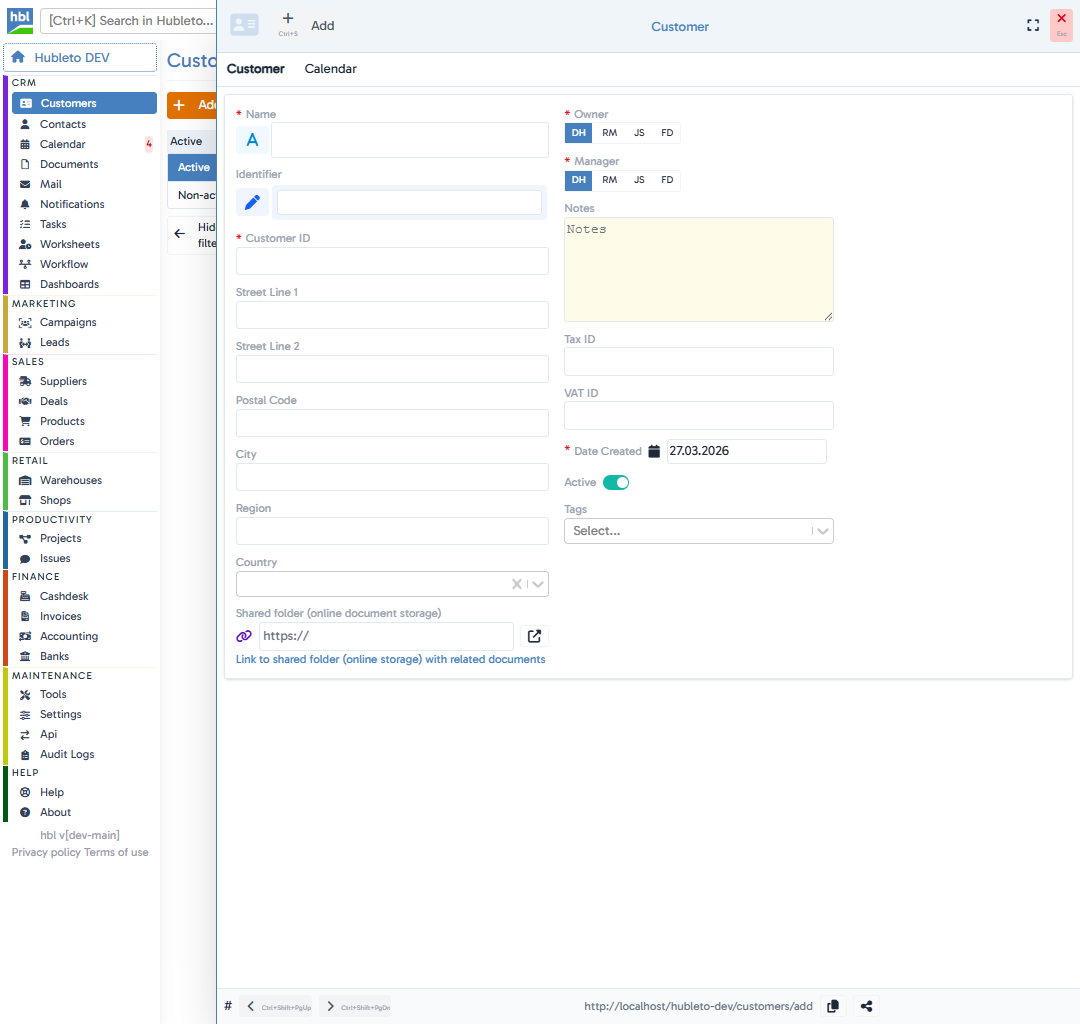
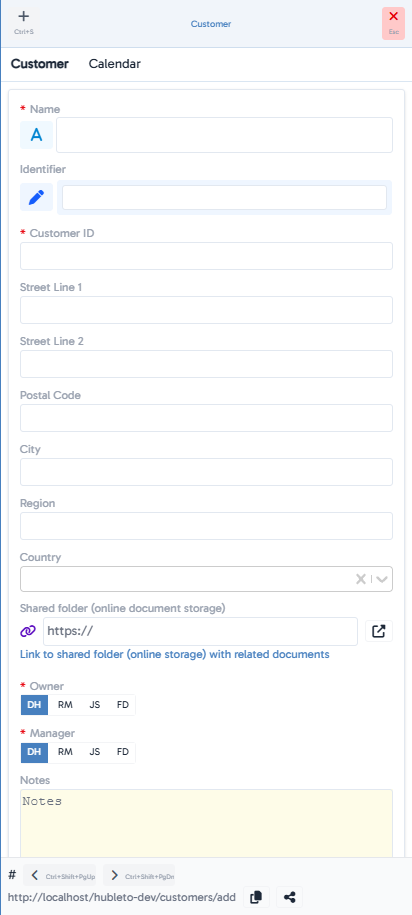
A form will open where you fill in:
- Name (required) – customer name (company or individual).
- Customer ID (required) – unique customer number.
- Street Line 1 / Street Line 2 – address.
- City, Region, Country, Postal Code – location.
- Shared folder – link to a shared folder with documents.
- Notes – internal notes.
- VAT ID / Tax ID – identification numbers (if available).
- Date Created – record creation date (pre-filled with today’s date).
- Active – toggle to mark if the customer is active.
- Tags – labels (VIP, Partner, Public, …).
- Owner (required) – the person responsible for the record.
- Manager (required) – the customer’s manager.
4
Click
Tips
Owner vs. Manager: The Owner is the person who owns the record, while the Manager is the one actively managing the customer.
Add Tags right away – they make later filtering easier.
Use the Shared folder to insert a link to a cloud folder with customer-related documents.
Common mistakes
Missing required fields: You must fill in at least Name, Customer ID, Owner, Manager.
Duplicate ID: Each customer must have a unique Customer ID.
Forgotten Active status: If a customer isn’t marked Active, they won’t appear in “Active” filters.
Summary
| Topic | Summary |
|---|---|
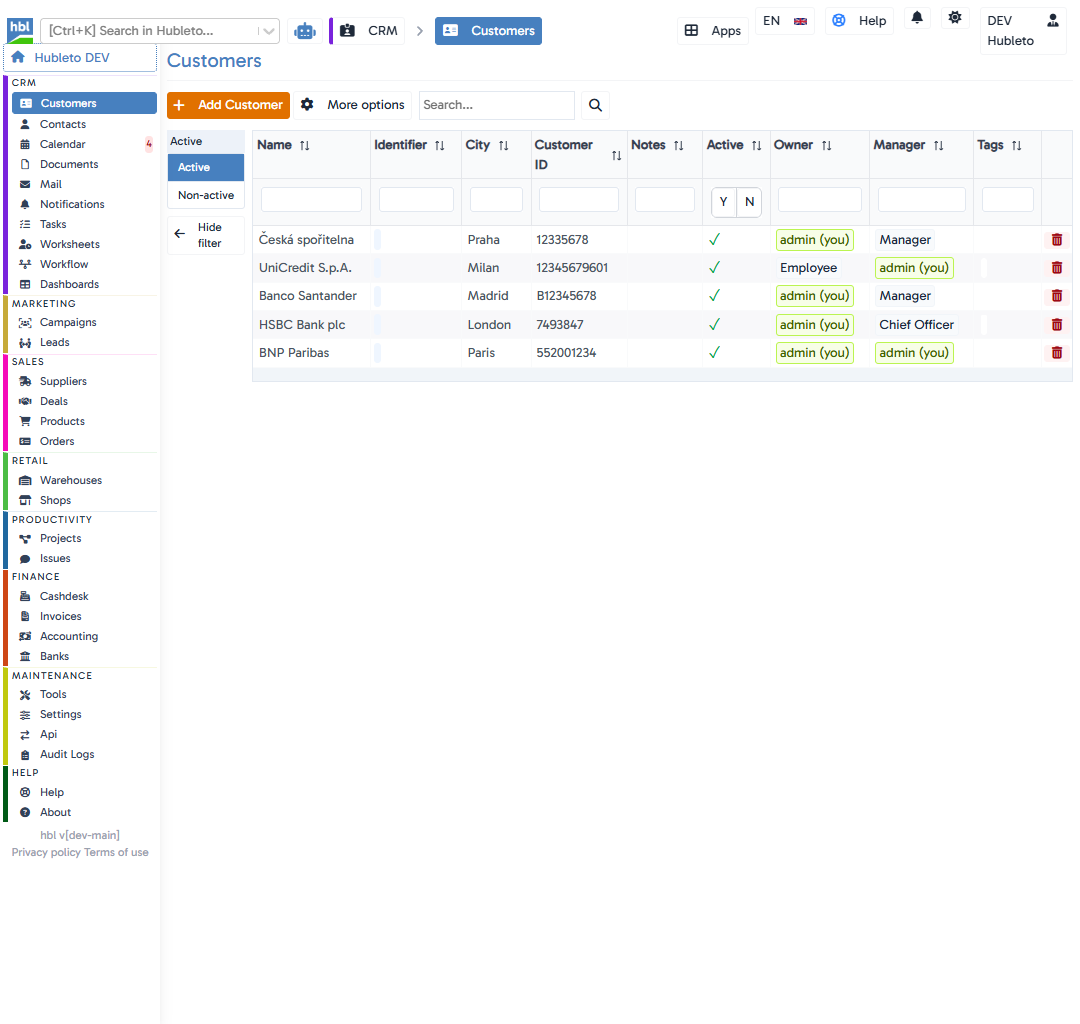
| Add a new customer | Go to CRM -> Customers and click + Add Customer. |
| Required fields | Name, Customer ID, Owner, Manager |
| Tags and notes | Use Tags and Notes for better organization. |
| Documents | Documents can be linked through the Shared folder. |