Language and appearance
Hubleto allows you to adjust both the language of the interface and the visual appearance of the application. These controls are available directly from the main Hubleto interface, so you can change them quickly without opening a deeper settings form first.
Change the language
Hubleto currently supports multiple interface languages. Based on the local configuration, available languages include:
- English
- German
- Spanish
- French
- Italian
- Polish
- Romanian
- Czech
- Slovak
How to change the language
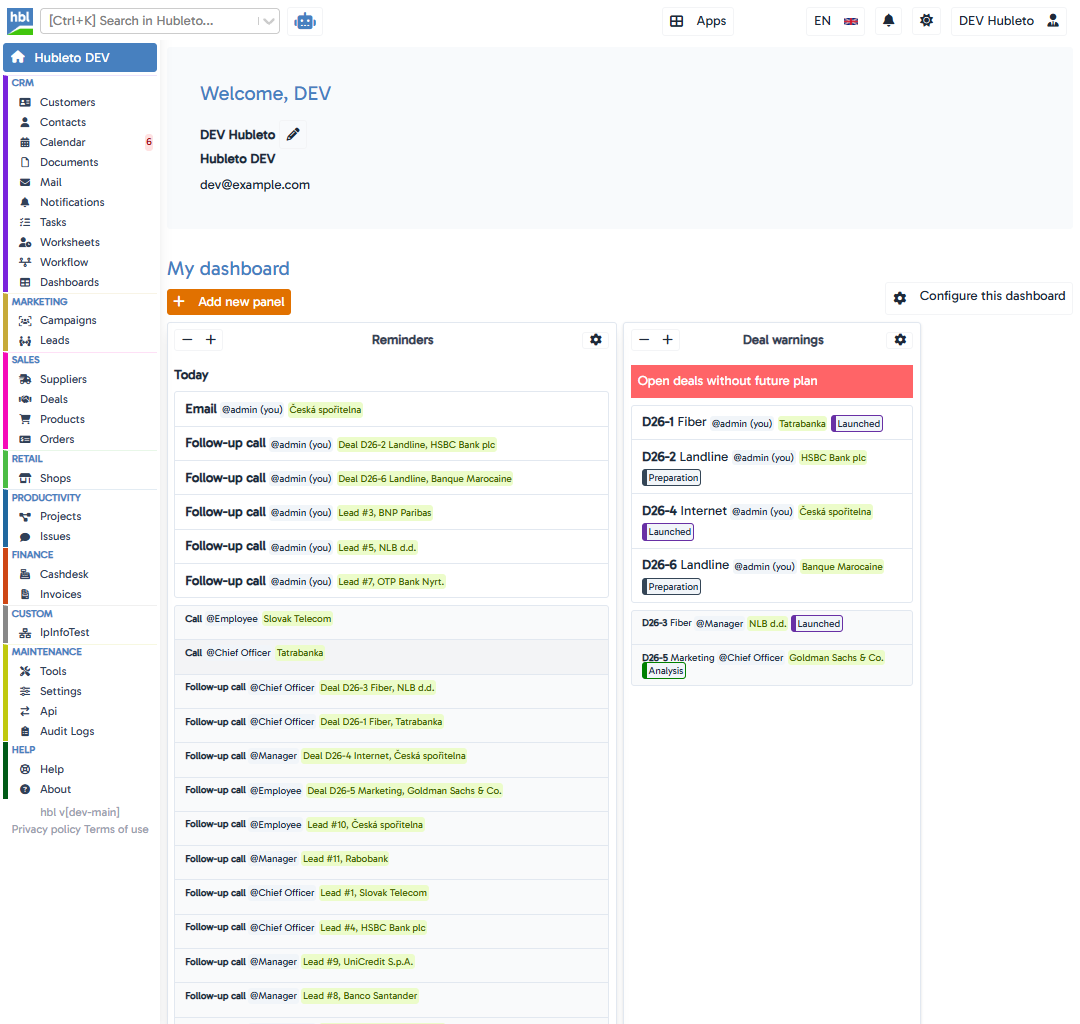
Go to the main Hubleto screen.
Look at the top-right part of the screen and click the language button.
The language selector is displayed with a flag and language code. In the default setup, English is shown as EN.
Choose a language from the list.
The dropdown shows supported languages together with their flags and names.
After you switch the language, Hubleto updates the interface for your account to the selected language.
Change the appearance
Hubleto also lets you switch the visual theme quickly from the same top-right control area.
The appearance toggle is represented by a small icon:
- Sun icon - used when switching to or indicating light appearance.
- Moon icon - used when switching to or indicating dark appearance.
How to change the appearance
Go to the main Hubleto screen.
Find the appearance button in the top-right control area, near notifications.
Click the appearance button to switch between light and dark mode.
When the appearance changes, the icon also updates to reflect the current mode.
Why this is useful
Language settings help each user work in a familiar interface, while appearance settings make the application more comfortable to use in different lighting conditions or personal preferences.
These quick controls are especially practical because they are available directly from the main interface rather than hidden inside a long configuration form.
Tips
Choose the interface language you use every day so navigation and labels stay intuitive.
Switch the appearance mode based on your working environment, especially if you spend long hours in the application.
If you share screenshots or demonstrations with colleagues, confirm the selected language first so labels match what they expect to see.
Common mistakes
Clicking the wrong top-right control: the language selector, notifications, appearance button, and user menu are close to each other.
Expecting all users to change together: language and appearance changes are typically user-facing preferences, not global system changes for everyone.
Forgetting which mode is active: the icon changes between sun and moon, so check it if you are unsure why the interface looks different.
Summary
| Topic | Summary |
|---|---|
| Language control | Change the interface language from the top-right language selector. |
| Supported languages | The current local configuration shows 9 available languages. |
| Appearance control | Use the appearance button near notifications to switch between light and dark mode. |
| Practical benefit | Both settings are available directly from the main interface for quick personal adjustment. |