
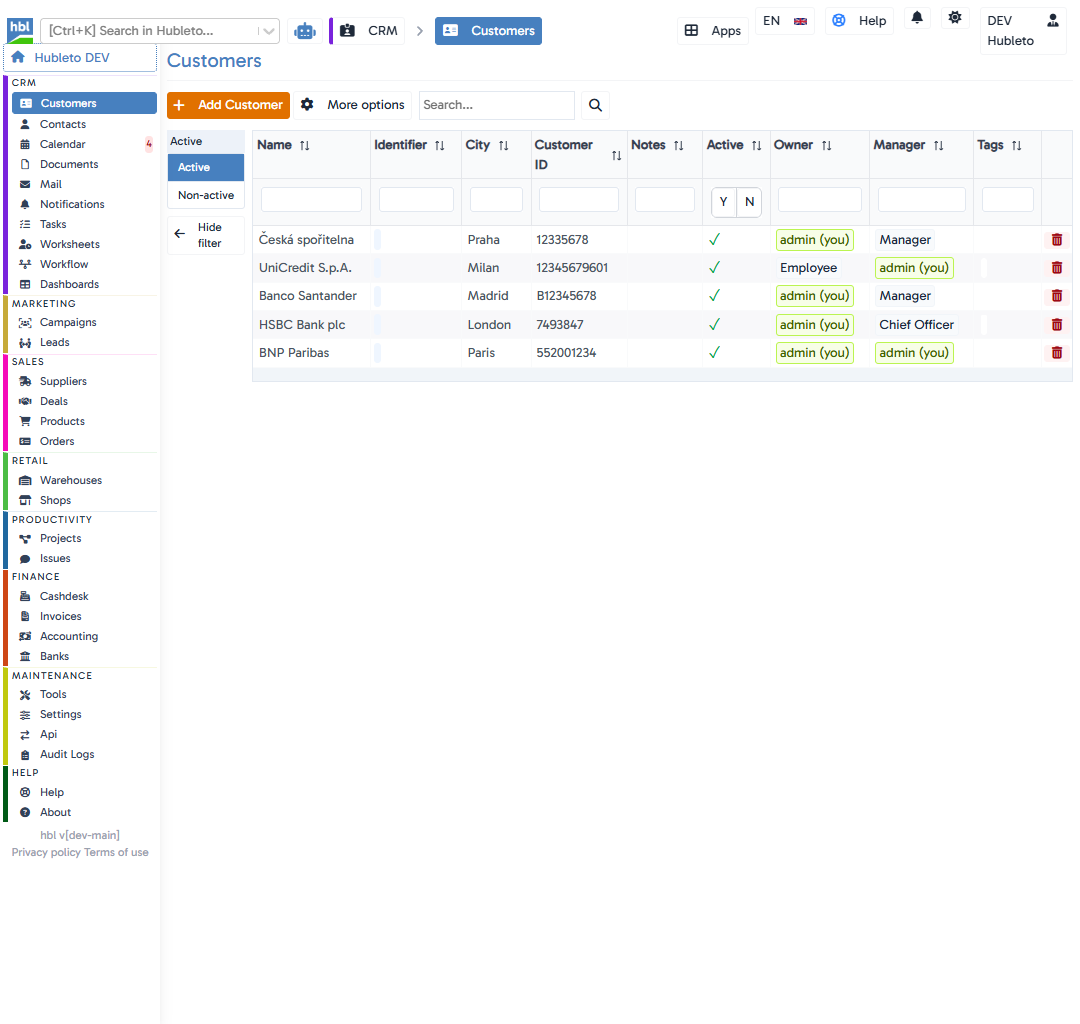
Modify customer
3
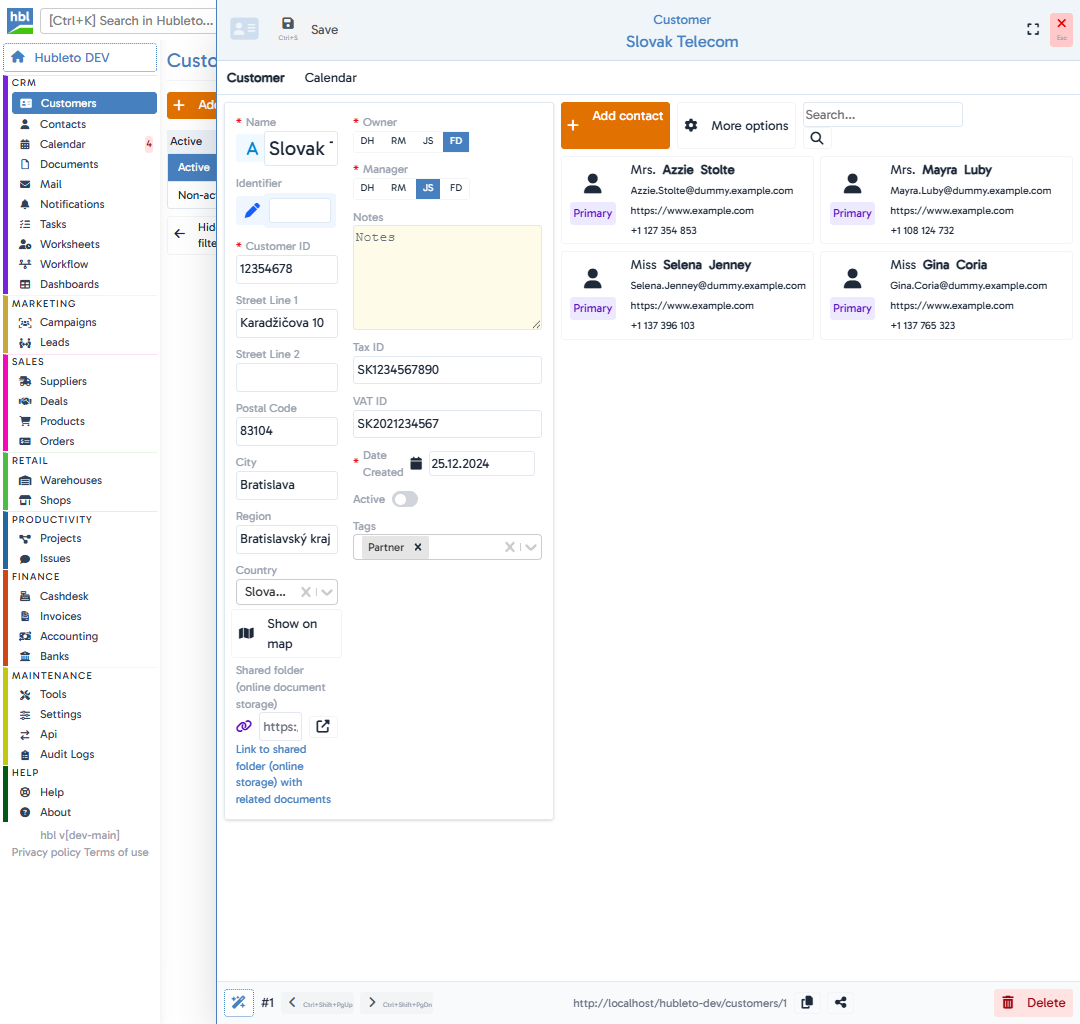
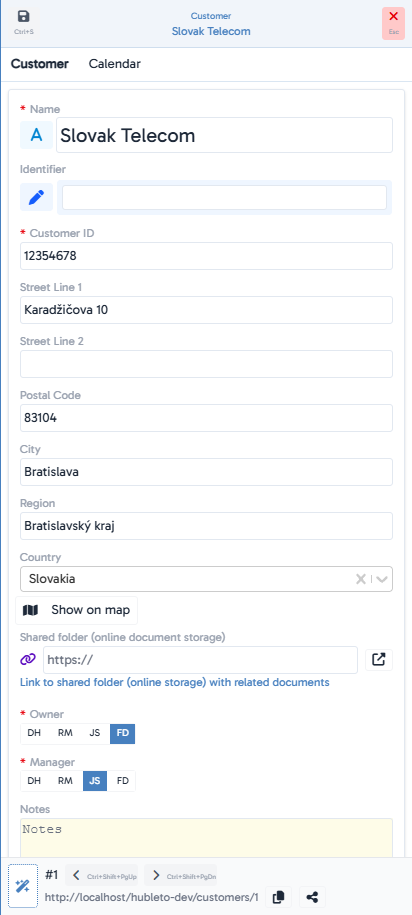
Modify customer's information
4
Click
Tips
Owner vs. Manager: The Owner is the person who owns the record, while the Manager is the one actively managing the customer.
Add Tags right away – they make later filtering easier.
Use the Shared folder to insert a link to a cloud folder with customer-related documents.
Common mistakes
Missing required fields: You must fill in at least Name, Customer ID, Owner, Manager.
Duplicate ID: Each customer must have a unique Customer ID.
Forgotten Active status: If a customer isn’t marked Active, they won’t appear in “Active” filters.
Summary
| Topic | Summary |
|---|---|
| Add a new customer | Go to CRM -> Customers and click + Add Customer. |
| Required fields | Name, Customer ID, Owner, Manager |
| Tags and notes | Use Tags and Notes for better organization. |
| Documents | Documents can be linked through the Shared folder. |